Activity Log
The Activity Log in WhatsCloud helps you track and monitor all system activities related to your WhatsApp automation. Whether it's bot interactions, campaigns, or template message deliveries, this log shows "what happened, when it happened, and how it performed".
Main Activity Log Screen
This screen displays a list of all activity records. Here's what each column means:
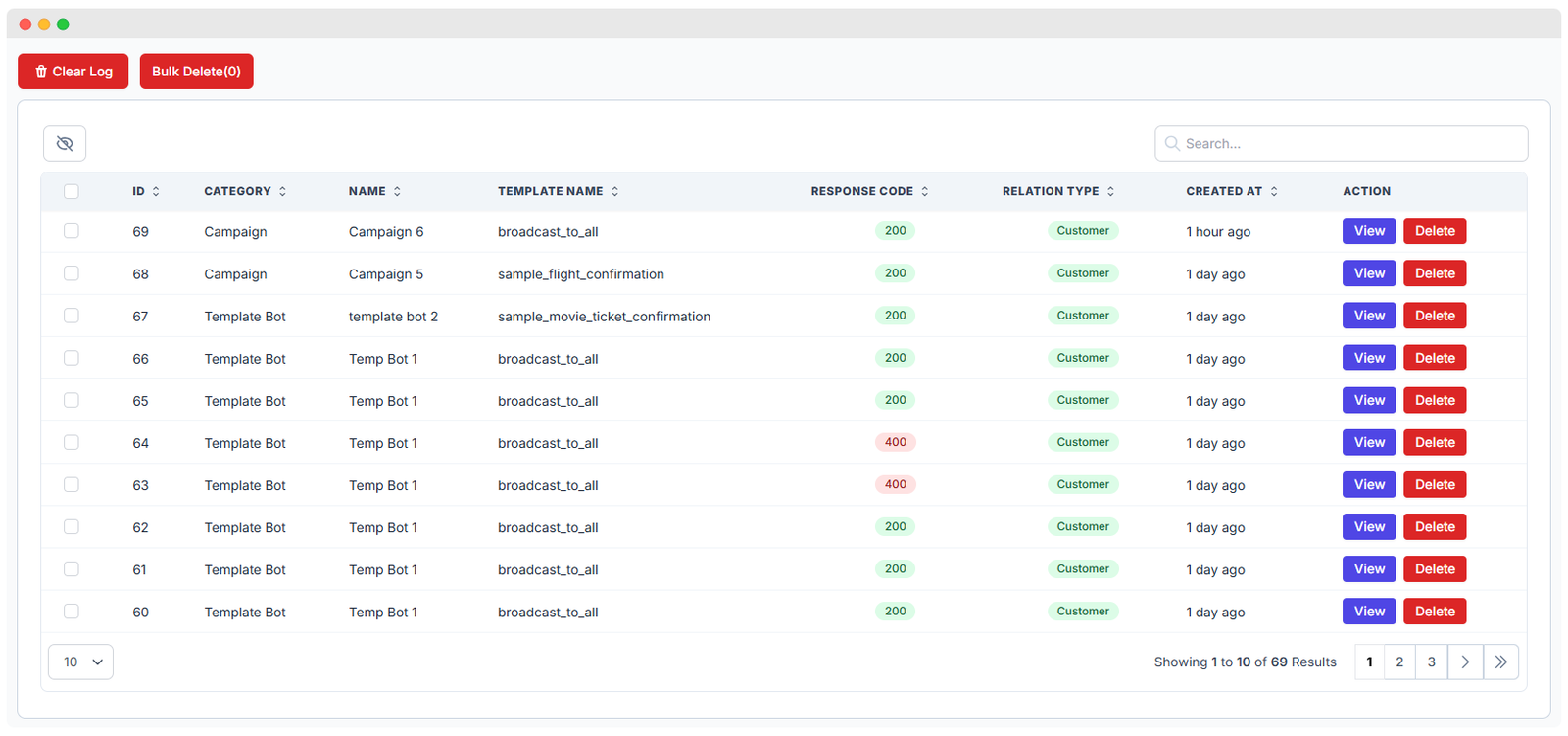
| Column Name | Description |
|---|---|
| ID | Unique numerical identifier for each activity record. |
| Category | The source or type of the activity (e.g., Campaign, Template Bot, Automated Rule). |
| Name | The name of the campaign or bot that triggered the action. |
| Template Name | The name of the WhatsApp template used for the message (if applicable). |
| Response Code | The HTTP status code received from the API (e.g., 200 = Success, 400 = Error). |
| Relation Type | The type of recipient (usually Customer or Lead). |
| Created At | The timestamp when the message or action occurred. |
| Action | Buttons to View the detailed log information or Delete a specific log entry. |
You can quickly diagnose message delivery status:
- ✅ Green 200 means the message was sent successfully.
- ❌ Red 400 indicates an error, often due to issues like media upload failures, invalid parameters, or a blocked recipient number.
Bulk Log Management
At the top of the log list, you'll find management controls for large-scale operations:
- Clear Log – Deletes all logs from the system (requires confirmation).
- Bulk Delete – Allows you to select specific entries using checkboxes and delete them in one go.
Viewing Detailed Log Information
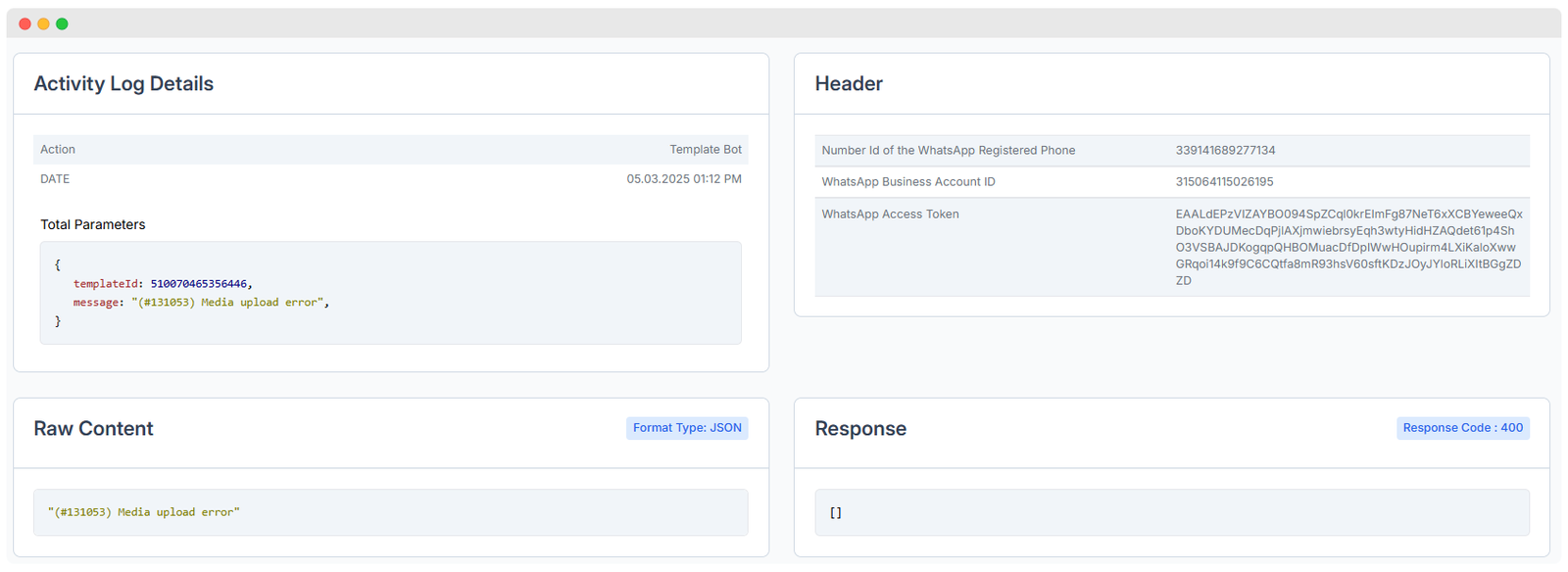
Clicking the View action button opens the detailed log screen, which is broken into the following key sections:
Activity Summary
Provides basic, human-readable information:
- Action – The name of the process that was triggered (e.g., Template Bot Execution).
- Date & Time – The exact time and date the activity occurred.
Total Parameters
This shows the raw data payload that was passed to the system to initiate the action, often in JSON format. This is crucial for debugging complex operations.
{
    "templateId": 510070465356446,
    "recipient": "919876543210",
    "message": "(#131053) Media upload error"
}
Header Section
Shows key metadata used for the external API call, primarily for security and authentication verification:
- WhatsApp Number ID
- Business Account ID
- Access Token (always blurred or redacted for security)
Raw Content
This section displays the full, unparsed content of the message or request, including any internal processing data or error messages before they are summarized.
Response
Displays the actual, direct response received from the WhatsApp API. This is the definitive record of the outcome:
- A successful message might return a JSON object containing the message ID.
- An error will return a descriptive error object explaining the failure (e.g.,
Authentication failure,Rate limit exceeded).