Opt-In/Out System Guide
Overview
What is the Opt-In/Out System?
The Opt-In/Out System is a compliance and customer preference management feature that allows your customers to control whether they receive marketing messages from your business. It's not just a feature—it's a legal requirement and a trust-building tool.
Legal Compliance
Your business MUST provide opt-out capabilities to comply with:
| Regulation | Region | Requirement |
|---|---|---|
| WhatsApp Business Policy | Global | Mandatory opt-out mechanism |
| GDPR | Europe | User consent required for marketing |
| TCPA / CAN-SPAM | USA | Clear opt-out in every message |
| CASL | Canada | Express consent for commercial messages |
| POPIA | South Africa | Consent for direct marketing |
Business Benefits
Beyond compliance, opt-out management provides:
- ✅ Build Trust - Respect customer preferences
- 📈 Better Engagement - Focus on interested customers
- 🎯 Quality over Quantity - Engaged audience converts better
- 🛡️ Account Protection - Avoid spam complaints
- 📊 Cleaner Data - Know who wants to hear from you
- 💬 Improved Deliverability - WhatsApp favors compliant businesses
How It Works
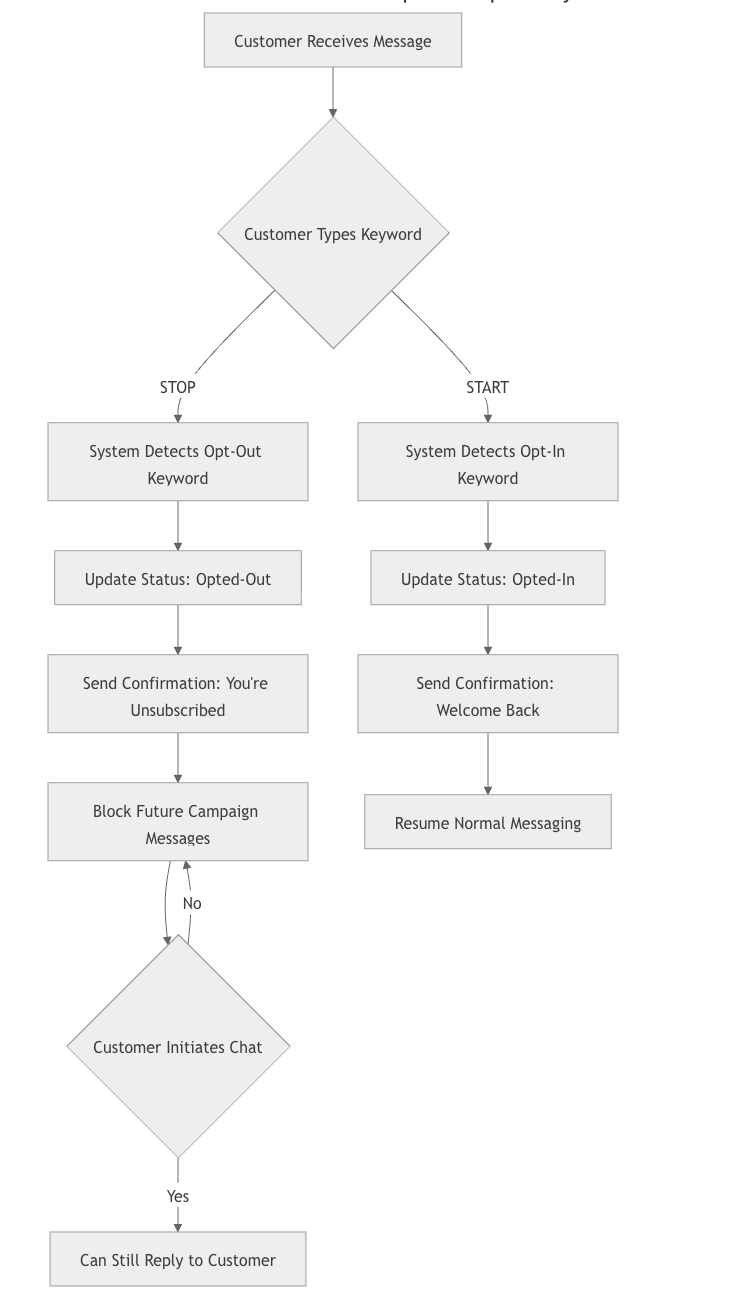
The Opt-Out/In Flow
assume that START and STOP is stored in opt in and opt out keywords
A:[Customer Receives Message]
        ⬇️
B:{Customer Types Keyword}
    B -- START
            --> [System Detects Opt-In Keyword]
                --> [Update Status: Opted-In]
                    --> [Send Confirmation: Welcome Back]
                        --> [Resume Normal Messaging];
    B -- STOP
            --> [System Detects Opt-Out Keyword]
                --> [Update Status: Opted-Out]
                    --> [Send Confirmation: You're Unsubscribed]
                        --> [Block Future Campaign Messages]
                            --> C:{Customer Initiates Chat?}
                            C -- No
                                --> [Block Future Campaign Messages];
                            C -- Yes
                                --> [Can Still Reply to Customer];
Understanding Opt-Out vs Opt-In
The Key Difference
Important Distinction
Opt-Out ≠ Blocked
- Opt-Out: Customer doesn't want marketing campaigns
- Blocked: All communication completely stopped
When someone Opt-Out, they're saying: Don't send me promotional messages, but I can still reach out if I need help.
Real-World Scenarios
Scenario 1: Customer Opts Out, Then Asks Question
Timeline:
- Customer receives campaign, replies "STOP"
- System marks them opted-out
- 2 days later: Customer texts "Hi, what's my order status?"
- Your bot/agent replies with order information ✅
- Customer asks follow-up questions
- You continue helping them ✅
Result: Communication continues normally for support. They just won't get marketing campaigns.
Scenario 2: Trying to Send Campaign to Opted-Out Customer
What Happens:
- You create a bulk campaign for 1,000 contacts
- 50 contacts are opted-out
- System automatically excludes those 50
- Campaign sends to only 950 contacts
- Report shows: "50 contacts skipped (opted-out)"
- No manual intervention needed ✅
Result: System protects you from violating customer preferences.
Scenario 3: Opted-Out Customer Purchases Product
Timeline:
- Customer is opted-out from marketing
- They visit your website and place an order
- System sends order confirmation ✅
- System sends shipping updates ✅
- System sends delivery confirmation ✅
- Does NOT send "Check out these related products" ❌
Result: Transactional messages work, promotional follow-ups don't.
Configuration Guide
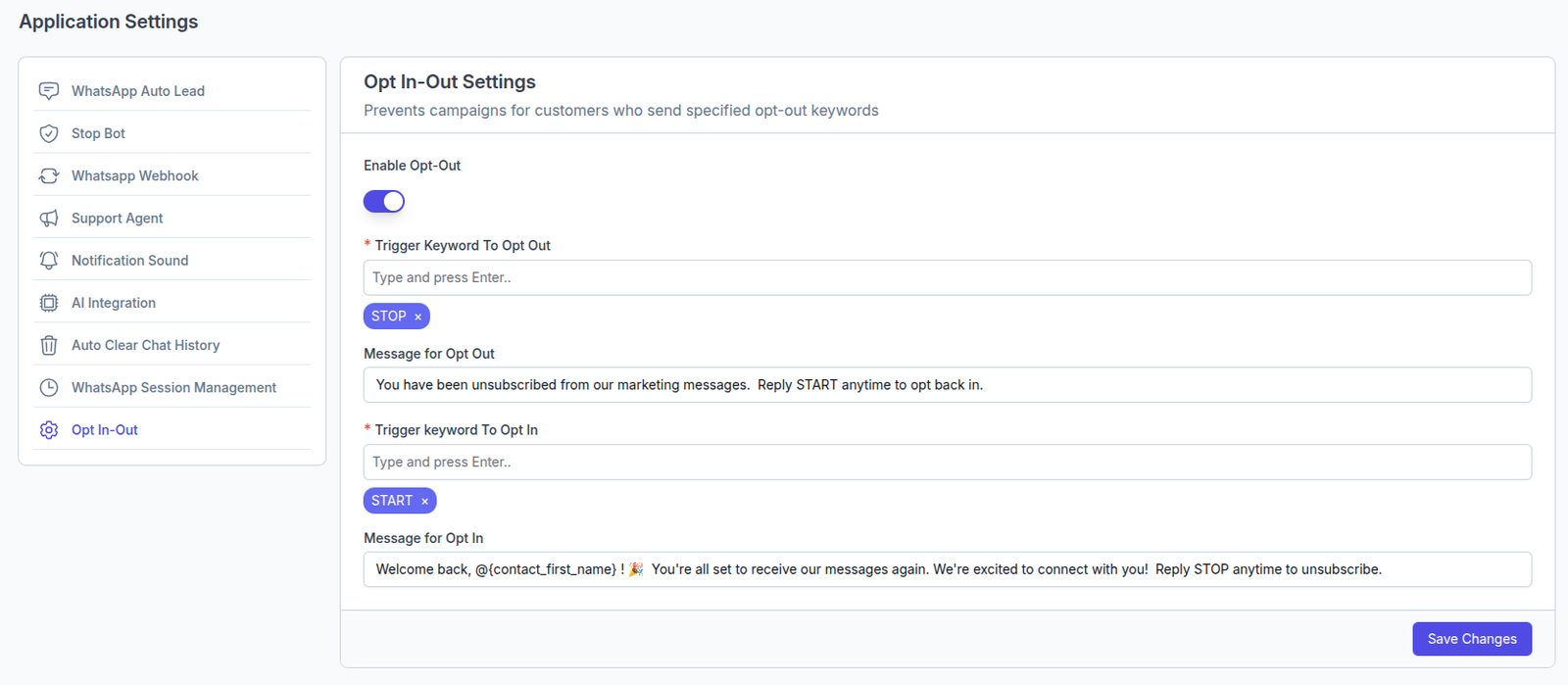
Step 1: Navigate to Opt-In/Out Settings
- Log in to your WhatsCloud dashboard
- Click Settings in the left sidebar
- Select Application Settings
- Click Opt-In/Out System
Step 2: Configure Opt-Out Keywords
What Are Opt-Out Keywords?
These are the words customers can text to stop receiving marketing messages. When the system detects ANY of these keywords, it automatically opts the customer out.
Step 3: Write Opt-Out Confirmation Message
What Is This Message?
This is the automatic response sent to customers immediately after they opt out. It confirms their action and provides instructions to opt back in if they change their mind.
Step 4: Configure Opt-In Keywords
What Are Opt-In Keywords?
These are the words an opted-out customer can text to resume receiving messages. Only works for customers who previously opted out.
Step 5: Write Opt-In Confirmation Message
What Is This Message?
Sent immediately after a customer opts back in. Welcomes them back and reminds them they can opt out again if needed.
Step 6: Save Your Configuration
-
Click Save Changes button
-
Wait for success confirmation: "Opt-In/Out settings saved successfully" ✅
Manual Opt-In/Out Management
Managing Customer Preferences from Contacts Table
You can manually control opt-in/opt-out status for individual contacts directly from your contacts table, without waiting for customers to use keywords.

Pro Tip
The manual toggle works alongside keyword-based opt-out. Changes are instant and will be reflected in the next campaign.