Language Settings
The Language Settings feature provides a powerful way to manage a multilingual user interface by allowing you to add, edit, delete, and translate languages across the system. Whether you’re localizing your platform or supporting users in multiple regions, these features offer complete control over how languages are presented and maintained.
Summary
| Feature | Description |
|---|---|
| Add Language | Add a new language using a descriptive name and a standard language code. |
| Edit Language | Modify the name or code of existing languages. |
| Delete Language | Remove unused or unwanted languages from the system. |
| Translate Language | Translate system interface text (text strings) for each supported language. |
| Language Switcher | Quickly change the entire user interface language via a dropdown menu in the header. |
Language Overview
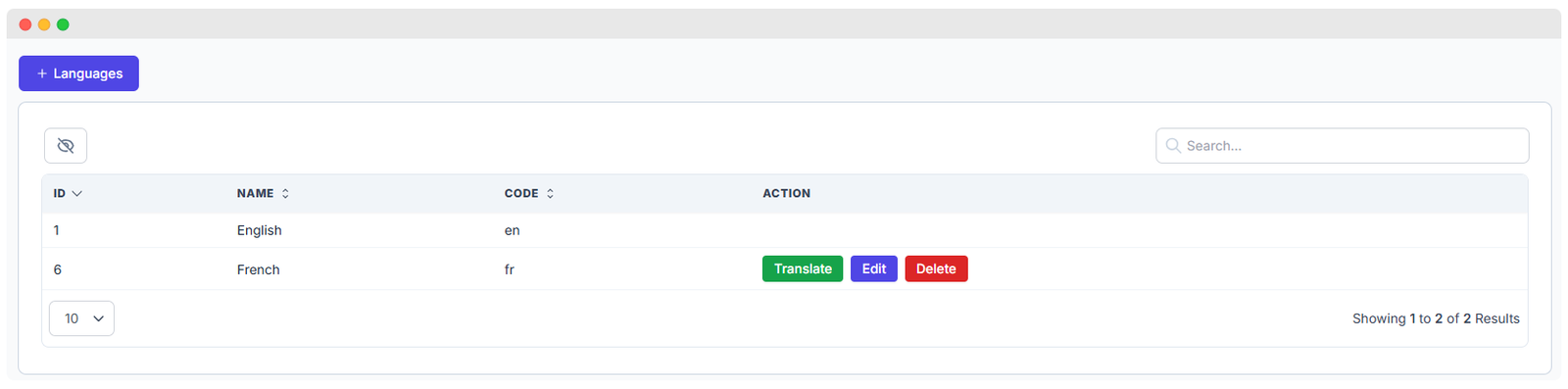
The Languages screen displays a list of all currently supported languages in your WhatsCloud instance.
Each language entry includes:
- ID – Internal reference number.
- Name – The full language name (e.g., English, French).
- Code – The short, standard code (e.g.,
en,fr). - Actions – Buttons to access Translate, Edit, or Delete functions.
✅ Note: Always use standard ISO 639-1 codes (e.g.,
en,es,fr,de) for language codes to ensure consistency and compatibility.
Add a New Language
To integrate a new language into the system:
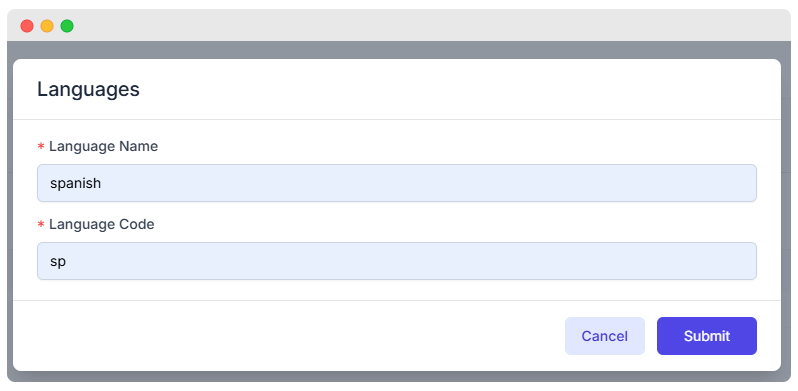
- Click the + Languages button located at the top of the list.
- In the pop-up form, fill in the following details:
- Language Name: The full name of the language (e.g., Spanish).
- Language Code: The two-letter ISO 639-1 code (e.g.,
es).
- Click Submit to save the new language.
📝 Tip: Avoid using non-standard or random codes like
sp. Useesfor Spanish,defor German, etc., for system stability.
Edit or Delete a Language
From the main language list, you can manage existing entries:
- Click Edit next to a language to update its name or code.
- Click Delete to permanently remove a language from the system.
⚠️ Caution: Deleted languages cannot be recovered unless they are re-added manually. Ensure the language is not actively in use before deleting.
Translate Language Texts
This is where you localize the system's user interface text (text strings) for each language you've added.
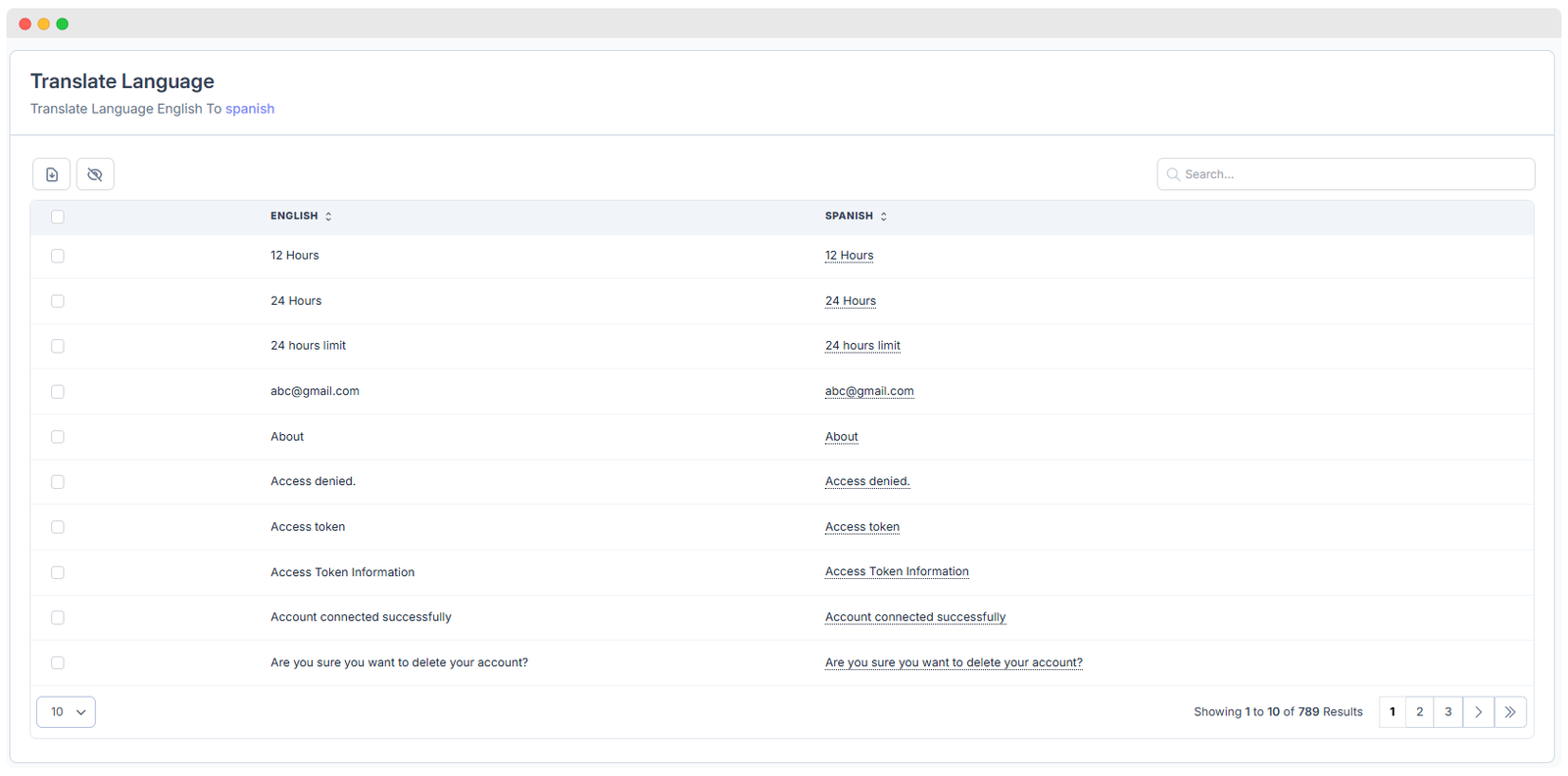
- Click the Translate button next to the language you wish to localize.
- A translation table will open:
- The Left column shows the Original Text (usually English).
- The Right column contains the Editable Translated Text for the selected language.
- Type your translations directly into the editable fields.
Features:
- Inline editing of translations for quick changes.
- Bulk selection for managing multiple strings at once.
- Export to CSV for external translation services or backup.
- Options to Hide columns for a cleaner view during translation work.
🔄 Important: After updating translations, you might need to click Clear cache or log out and back in for the changes to fully apply across the system.
Switch Between Languages
Users can instantly select their preferred interface language from the header menu.
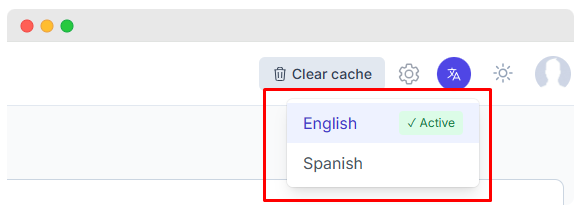
Steps:
- Click the language icon (typically a globe or flag) in the application's header.
- Choose a language from the dropdown list.
- The interface updates instantly based on the available translations for that language.
The active language is typically marked with a green checkmark or highlighted.
Best Practices
To maintain a smooth, localized experience:
- Use ISO 639-1 codes strictly for language consistency.
- Translate only front-end interface strings; leave technical placeholders, variable names, or email addresses as-is.
- Back up your completed translations regularly using the Export feature.
- Always test language changes with different user roles and system views to ensure no text is missing or incorrectly formatted.
Additional Notes
- New languages appear instantly in the language selector once they are successfully added to the system.
- If the language switch doesn't reflect your latest translations, always try:
- Clicking Clear cache within the settings.
- Logging out and back into the system.
By effectively managing languages in WhatsCloud, you ensure a localized, accessible experience for users worldwide.