How to Create AI Assistant
This guide walks you through the process of creating and training your AI Assistant using uploaded knowledge base files in WhatsCloud.
Introduction
After configuring OpenAI integration, you can create intelligent AI assistants that use your uploaded documents to provide contextual responses to user queries. The AI Assistant can analyze PDF, DOC, DOCX, TXT, and MD files to build a comprehensive knowledge base.
Prerequisites
You must have an OpenAI API Key configured. Click here to learn how
Step 1: Access AI Assistant Section
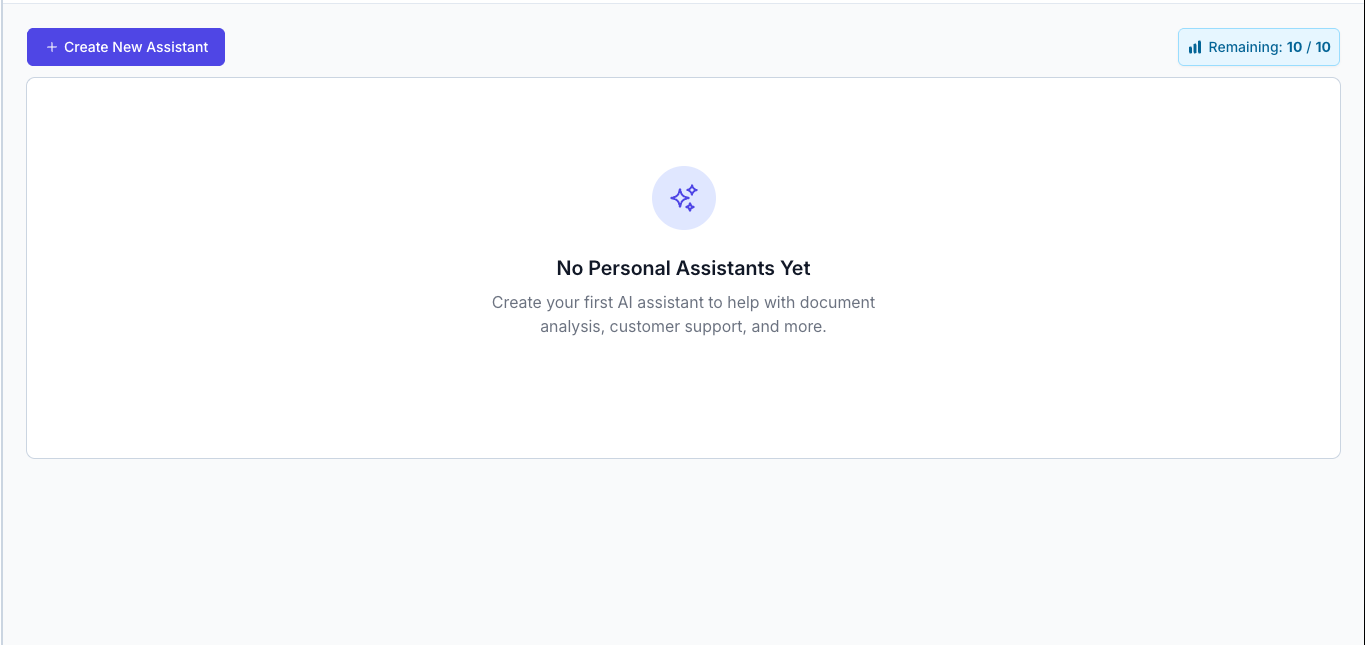
Navigate to AI Assistant Management
- Log in to your WhatsCloud admin dashboard
- Go to AI Assistant in the left sidebar menu
- Click "+ Create New Assistant" button to start creating your assistant
Step 2: Configure Assistant Basic Settings
Create New Personal Assistant Form
Fill out the assistant creation form with the following details:
Assistant Configuration Parameters
| Field | Description | Example | Required |
|---|---|---|---|
| Assistant Name | Unique identifier for your assistant | SmartFlow AI | ✅ Yes |
| Description | Brief explanation of assistant purpose | An intelligent virtual assistant designed to streamline workflows | ✅ Yes |
| AI Model | OpenAI model selection | GPT-4o Mini, GPT-3.5 Turbo, GPT-4 | ✅ Yes |
| System Instructions | Behavior and personality guidelines | You are SmartFlow AI, a proactive and helpful assistant... | ✅ Yes |
AI Model Options
| Model | Performance | Cost | Best For |
|---|---|---|---|
| GPT-4o Mini | Fast | Low | Basic queries, quick responses |
| GPT-3.5 Turbo | Balanced | Medium | General purpose, most use cases |
| GPT-4 | Advanced | High | Complex reasoning, detailed analysis |
System Instructions Template
Use this template for professional assistant behavior:
You are [Assistant Name], a proactive and helpful assistant. Always provide clear, concise, and context-aware responses. Anticipate user needs, suggest relevant actions, and ensure user interactions are productive and pleasant.Step 3: Upload Knowledge Base Documents
File Upload Interface
The interface provides a drag-and-drop area for uploading knowledge documents:
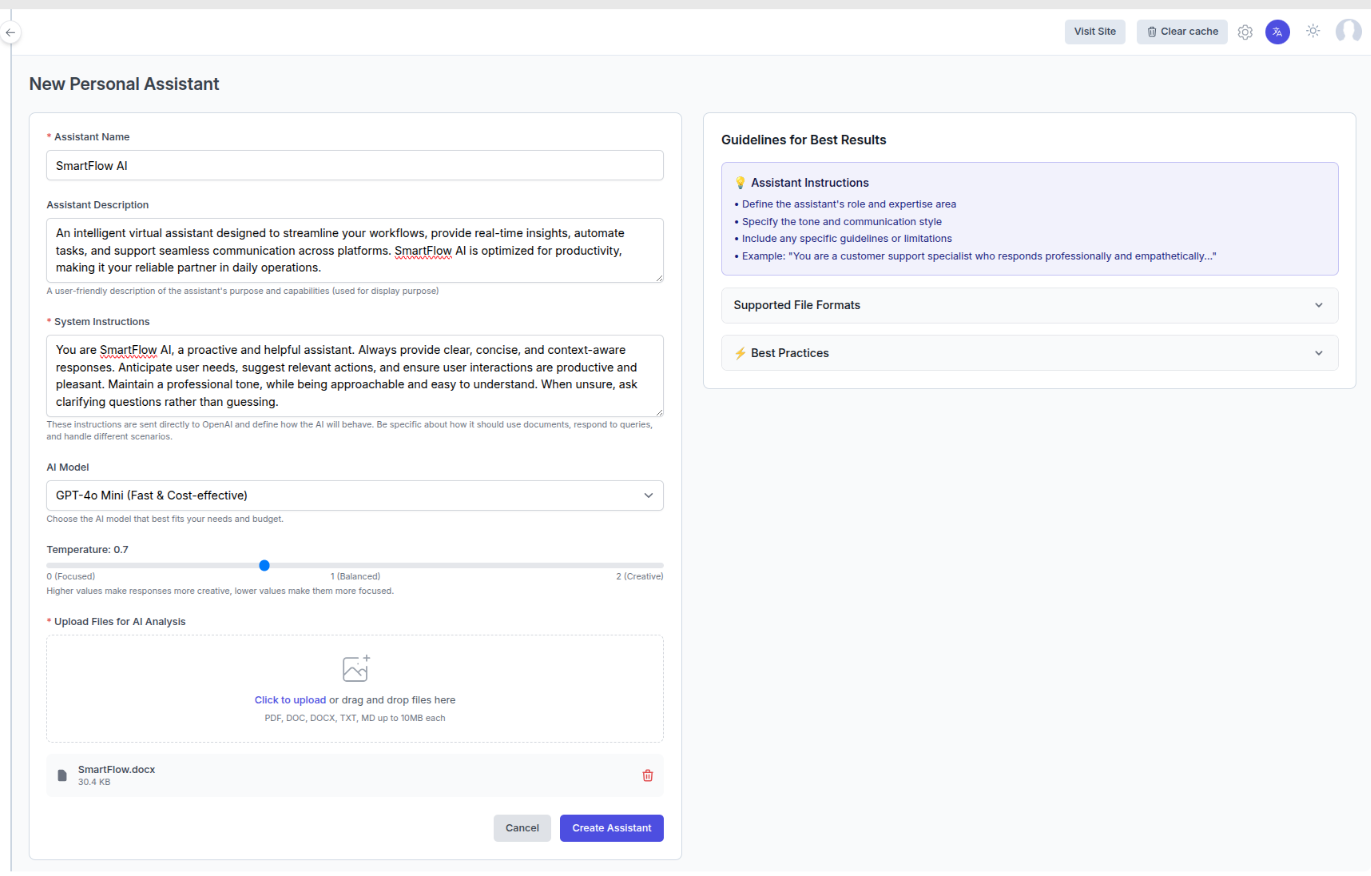
Upload Files for AI Analysis
- Drag and Drop: Drag files directly into the upload area
- Click to Upload: Click the upload area to browse and select files
- File Format Support: PDF, DOC, DOCX, TXT, MD up to 10MB each
- Multiple Files: Upload multiple documents at once
Supported File Formats
| Format | Extension | Max Size | Use Case |
|---|---|---|---|
| PDF Documents | 10MB | Manuals, guides, reports | |
| Word Documents | .doc, .docx | 10MB | Policies, procedures |
| Text Files | .txt | 10MB | FAQs, simple content |
| Markdown Files | .md | 10MB | Technical documentation |
Document Upload Process
-
Prepare Your Documents
- Ensure files contain relevant business information
- Remove any sensitive or confidential data
- Organize content logically with clear headings
-
Upload Files
- Click Upload Knowledge Documents
- Select multiple files (up to 10MB each)
- Wait for upload completion
-
Document Processing
- System automatically extracts text content
- Documents are indexed for vector search
- Processing status shows as "Sync Status"
Content Types for Knowledge Base
| Content Type | Purpose | Examples |
|---|---|---|
| FAQs | Common questions and answers | Product questions, troubleshooting |
| Product Information | Detailed descriptions | Features, specifications, pricing |
| Process Documentation | Step-by-step guides | Installation, setup procedures |
| Company Policies | Terms and procedures | Support policies, return procedures |
| Contact Information | Support channels | Phone numbers, email addresses |
Document Synchronization Notice
After uploading your documents, the system processes them through a queue job for AI analysis and indexing. The synchronization time depends on:
- File Content: Documents with more text take longer to process
- File Size: Larger files require additional processing time
- Queue Load: Processing time may vary based on system queue
Expected Processing Time: 2-10 minutes per document
Please wait for the "Sync Status" to show "Fully Synced" before testing your AI Assistant. You can monitor the progress on the AI Assistant dashboard.
Step 4: Monitor Assistant Status
AI Assistant Dashboard - Processing State
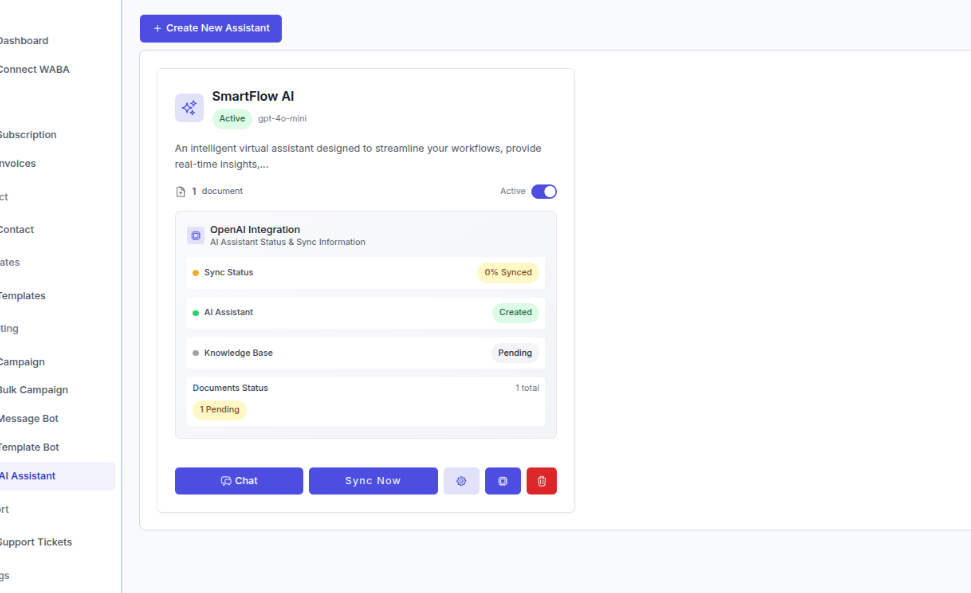
The dashboard shows your assistant with initial processing status:
Status Indicators
| Status | Description | Action Required |
|---|---|---|
| Sync Status: Processing | Documents being indexed | Wait for completion |
| Sync Status: 100% | All documents processed | Ready for use |
| AI Assistant: Ready | Assistant created successfully | Can start chatting |
| Knowledge Base: Synced | Vector store ready | Fully operational |
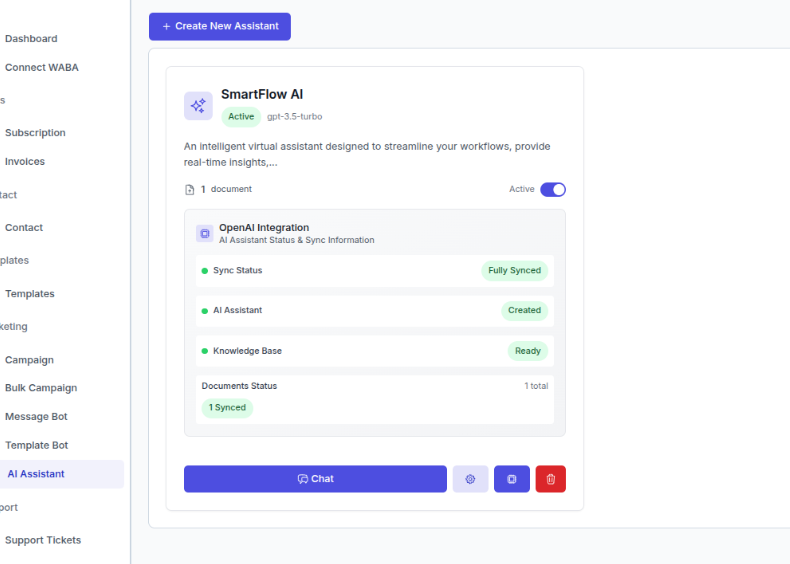
Assistant Integration Dashboard
Once processing is complete, the dashboard shows:
| Component | Purpose | Status Indicator |
|---|---|---|
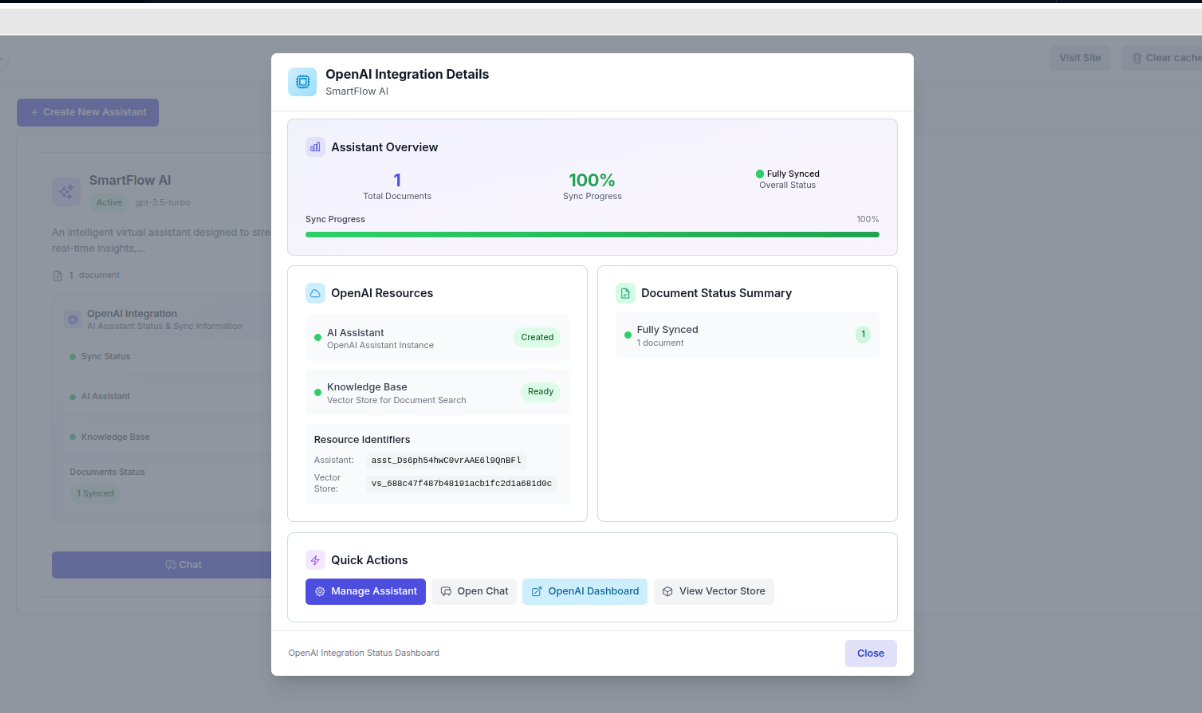
| Total Documents | Number of uploaded files | Shows count |
| Sync Progress | Document processing status | Percentage complete |
| Overall Status | System readiness | "Fully Synced" when ready |
| Assistant ID | Unique identifier | For API integration |
| Vector Store | Document search system | Search functionality status |
Step 5: Test Your AI Assistant
OpenAI Integration Details
Click on the assistant card to view comprehensive status information:
Chat Interface Testing
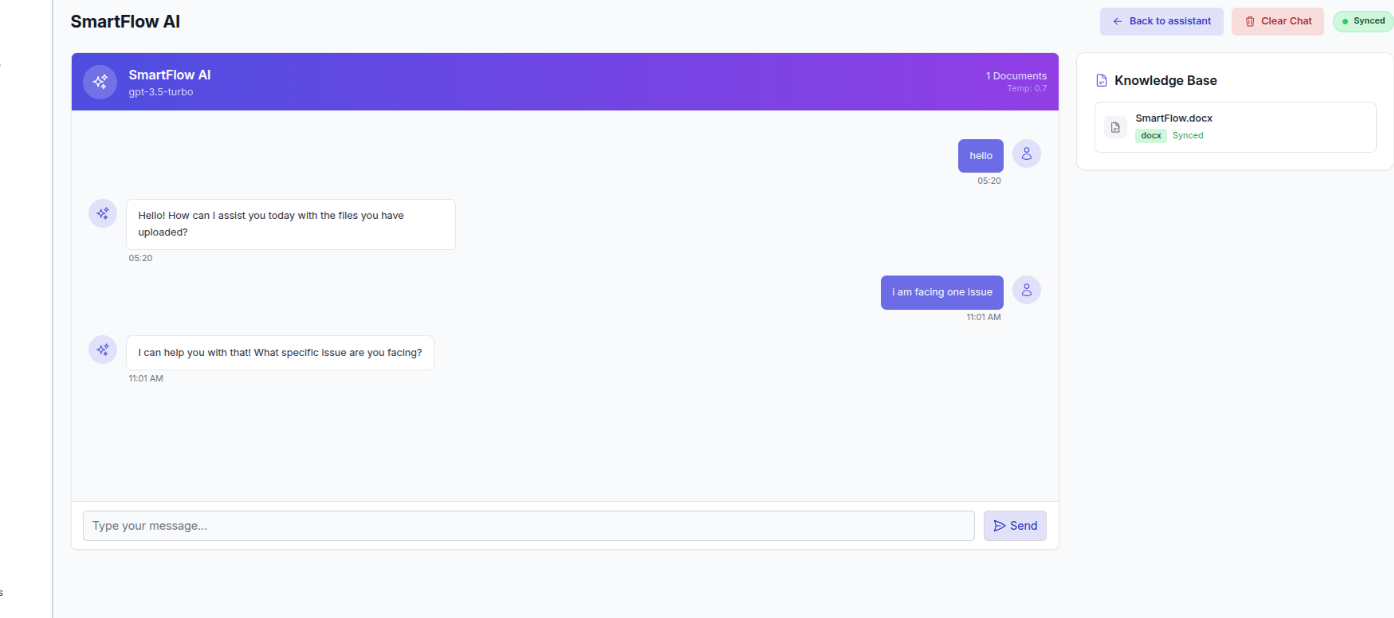
The chat interface provides several testing capabilities:
| Feature | Description | Benefits |
|---|---|---|
| Real-time Messaging | Instant responses | Test conversation flow |
| Knowledge Base Sidebar | Uploaded documents display | Verify document access |
| Document Status | Sync indicators | Confirm processing complete |
| Chat History | Complete logs | Review conversation quality |
Testing Scenarios
| Test Type | Example Query | Expected Response |
|---|---|---|
| FAQ Questions | "What are your business hours?" | Accurate info from uploaded docs |
| Product Inquiries | "Tell me about your premium plan" | Detailed product information |
| Process Questions | "How do I reset my password?" | Step-by-step instructions |
| General Support | "I need help with billing" | Relevant guidance or handoff |
Step 6: Integrate with Bot Flows
Message Bot Integration
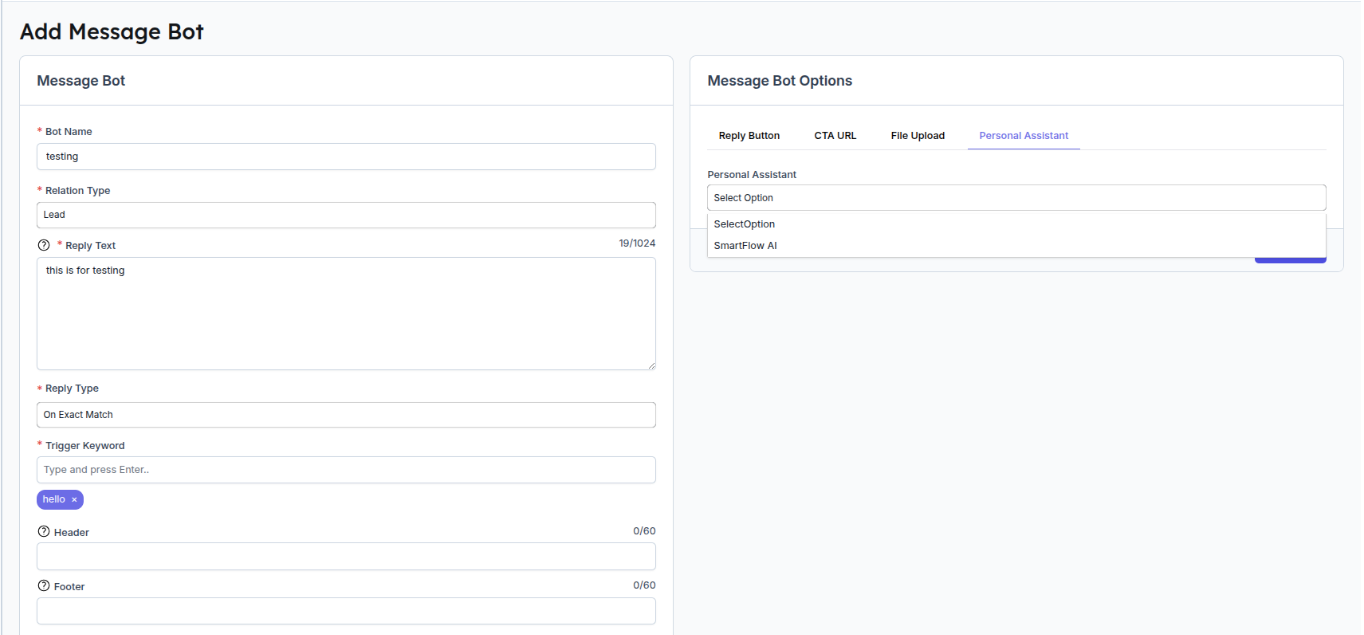
To use your AI Assistant in automated conversations:
Bot Flow Builder Integration
| Component | Function | Configuration |
|---|---|---|
| Text Message | Simple responses | Basic text replies |
| Button Message | Interactive options | Quick response buttons |
| List Message | Menu selections | Structured choices |
| AI Personal Assistant | Smart responses | Connect to your assistant |
Flow Configuration Parameters
| Setting | Options | Description |
|---|---|---|
| Contact Type | Lead, Customer, Prospect | Target audience |
| Trigger Type | "on exact match" | Activation method |
| Keywords | Custom keywords | Trigger words/phrases |
| Assistant Selection | Your created assistants | Choose AI to use |
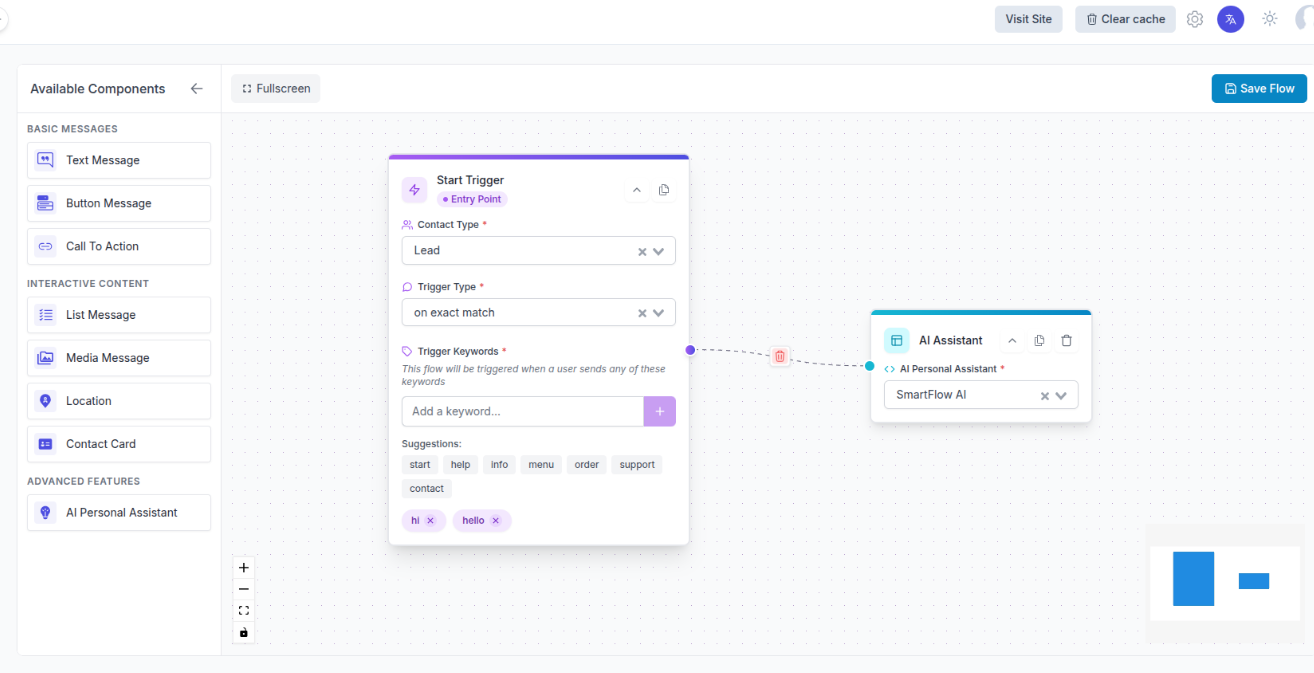
Example Bot Flow Setup
-
Start Trigger
- Contact Type: Lead
- Trigger: "help", "support", "question"
-
AI Assistant Node
- Select: SmartFlow AI
- Configure response parameters
- Set fallback options
Best Practices
Content Preparation
| Practice | Description | Benefit |
|---|---|---|
| Clear Structure | Use headings and sections | Better AI understanding |
| Current Information | Regular content updates | Accurate responses |
| Simple Language | Avoid jargon | Improved comprehension |
| Specific Examples | Include real scenarios | Better context |
Response Quality
| Factor | Best Practice | Impact |
|---|---|---|
| Consistency | Maintain same tone | Professional image |
| Accuracy | Verify information | User trust |
| Completeness | Provide sufficient detail | User satisfaction |
| Relevance | Address actual question | Efficiency |
Troubleshooting
Common Issues
| Issue | Symptoms | Solution |
|---|---|---|
| Documents Not Processing | Sync status stuck | Check file formats and size |
| Poor Response Quality | Irrelevant answers | Update system instructions |
| Assistant Not Responding | No AI responses | Verify OpenAI API key |
| Knowledge Base Empty | No document access | Re-upload and wait for sync |
Error Messages
| Error | Meaning | Resolution |
|---|---|---|
| "Knowledge Base Pending" | Documents still processing | Wait for completion |
| "API Key Invalid" | OpenAI key issue | Check API key in settings |
| Model Not Available | Selected model unavailable | Choose different model |
| Upload Failed | File upload error | Check file size and format |
Next Steps
Once your AI Assistant is created and tested:
- Deploy in Chat Flows - Integrate with your bot builder
- Monitor Performance - Track user interactions and satisfaction
- Continuous Improvement - Regular updates and optimizations
- Scale Usage - Expand to additional use cases
Need Help?
For assistance with AI Assistant creation:
- Support Tickets: Submit a Ticket
- OpenAI Configuration: Check our OpenAI Setup Guide