AI Prompts
The AI Prompts feature in WhatsCloud helps you create, manage, and use smart message templates to reply to users faster. These prompts can be used in chats or automated workflows to save time and maintain consistent communication, reducing the need to type out complex instructions every time you interact with the AI.
Features Overview
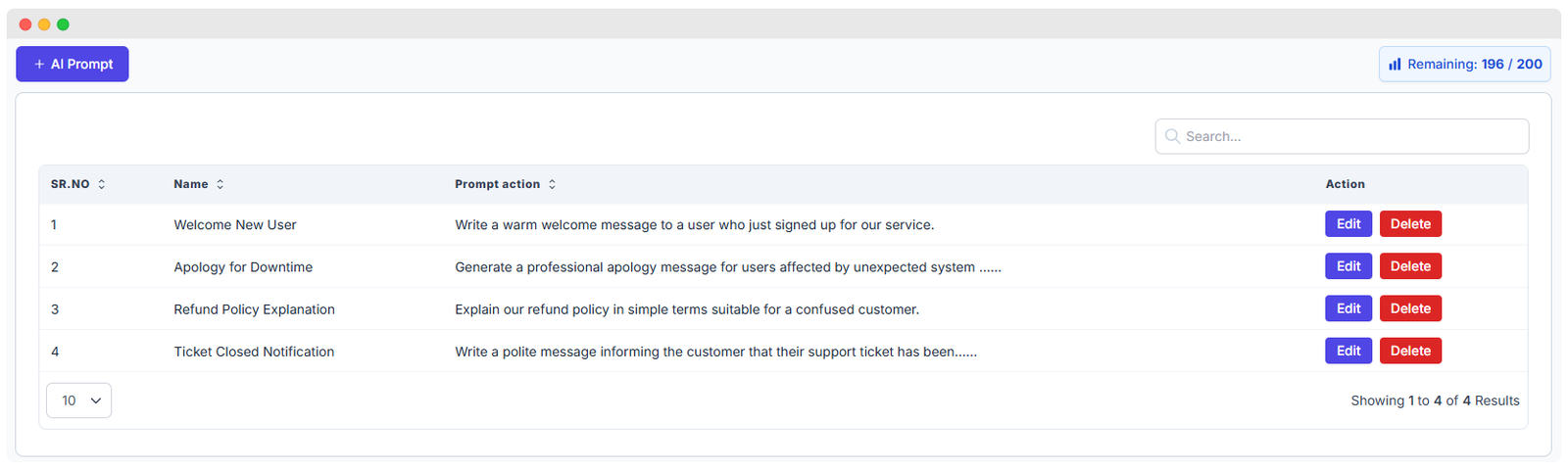
You can manage your AI prompts using the list view. Each prompt includes:
- Prompt Name – A clear title for easy identification (e.g., "Welcome New User").
- Prompt Action – The detailed instruction or task the AI should perform (e.g., "Write a warm welcome message...").
- Edit – Button to modify the prompt's name or action.
- Delete – Button to remove the prompt if no longer needed.
The dashboard also shows usage limits, such as: 196 / 200 used, helping you manage your resource consumption.
Adding a New AI Prompt
To create a new prompt:
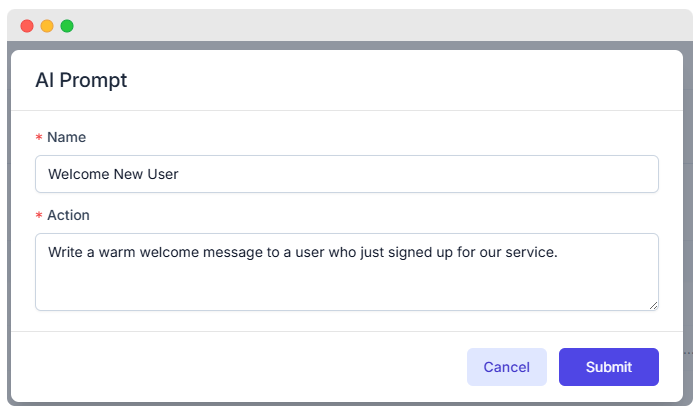
- Click the + AI Prompt button.
- Fill out the form:
- Name: Give your prompt a clear, easily recognizable title (e.g., *Welcome New User*).
- Action: Describe what the AI should do. Be specific and detailed (e.g., *Write a warm welcome message for new users, ensuring the tone is friendly and professional*).
- Click Submit to save the prompt.
💡 Tip: Write a clear and detailed action so the AI knows exactly what to do. The better the instruction, the better the AI response will be.
Where AI Prompts Are Used in WhatsCloud
- Chat Support: Agents can quickly select a saved prompt to generate context-aware replies to user messages, saving time on typing out complex instructions.
- Lead Follow-Ups: Use prompts to quickly generate engaging follow-up messages for new contacts.
- Common Questions: Create prompts for generating answers to FAQs, allowing the AI to respond instantly and consistently.
Example Prompts
| Name | Prompt Action |
|---|---|
| Welcome New User | Write a warm welcome message to a user who just signed up for our service. |
| Apology for Downtime | Generate a professional apology message for users affected by unexpected system issues, offering a 10% discount on their next invoice. |
| Refund Policy Explanation | Explain our refund policy in simple terms suitable for a confused customer, clearly stating the 30-day limit. |
| Ticket Closed Notification | Write a polite message informing the customer that their support ticket has been resolved and asking them to confirm satisfaction. |