Group Management
WhatsCloud SaaS provides a powerful Group Management system to help you organize, segment, and manage contacts more efficiently. With this feature, you can create groups, assign contacts to those groups, and filter or operate on contacts based on their group association.
Key Features
- Create and manage custom groups
- Assign contacts to one or more groups
- Filter contacts by group
- Edit and delete groups
- Improve targeting for messaging and marketing
Creating a New Group
To create a group:
- Go to the Setup section.
- Click on Groups in the sidebar.
- Click on the "+ New Group" button.
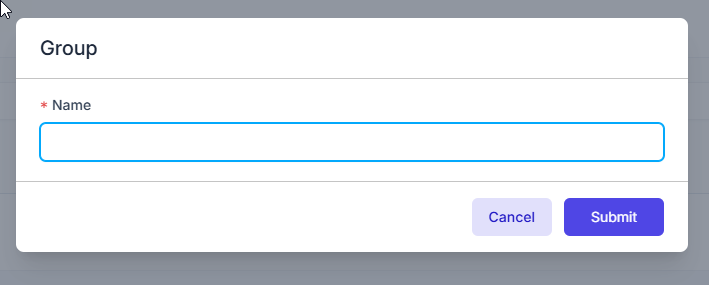
- A modal will appear asking for the group name.
Group Creation Modal
- Name: This is a required field. Provide a meaningful group name (e.g.,
whatsapp-group,facebook,CEO,referrals). - Click Submit to save the group.
- Click Cancel to discard.
⚠️ Important Note: Duplicate group names may not be allowed depending on the implementation.
Viewing and Managing Existing Groups
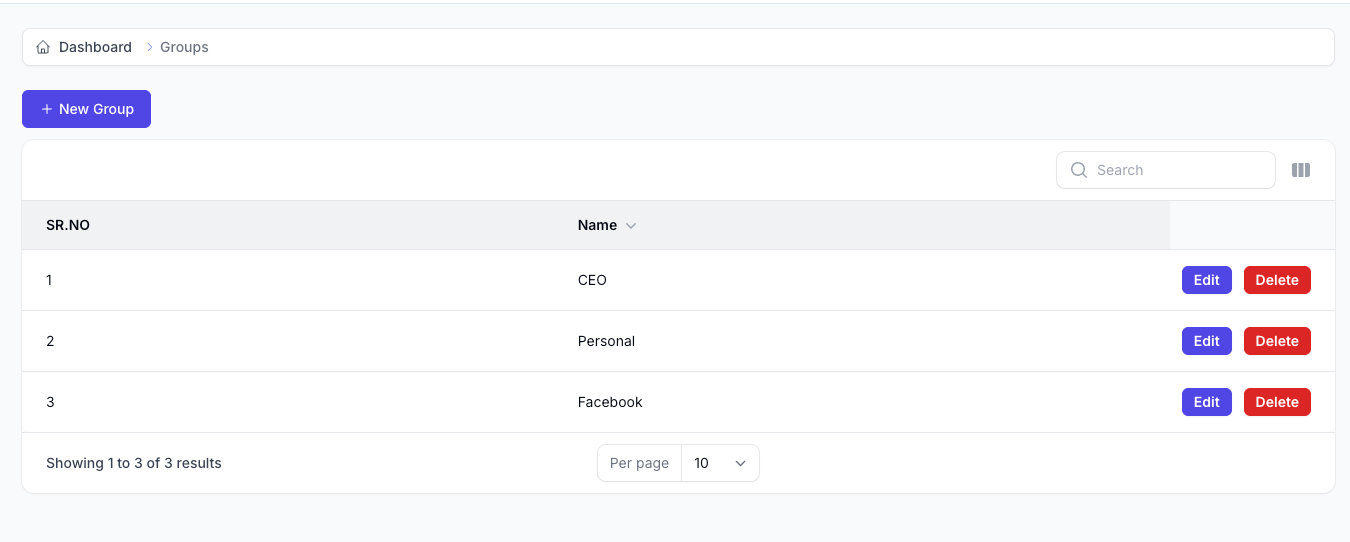
Once created, groups will be listed in a table view showing the following:
- Serial Number
- Group Name
- Actions (Edit / Delete)
Example Group List
You can:
- Edit: Update the name of the group.
- Delete: Remove the group from the system.
⚠️ Warning: Deleting a group may affect associated contacts depending on the business rules. Always check for linked contacts before deletion.
Assigning Groups to Contacts
Groups become meaningful when contacts are associated with them. You can assign a group when:
Creating a New Contact
- Go to Contacts > New Contact.
- Fill in the contact information.
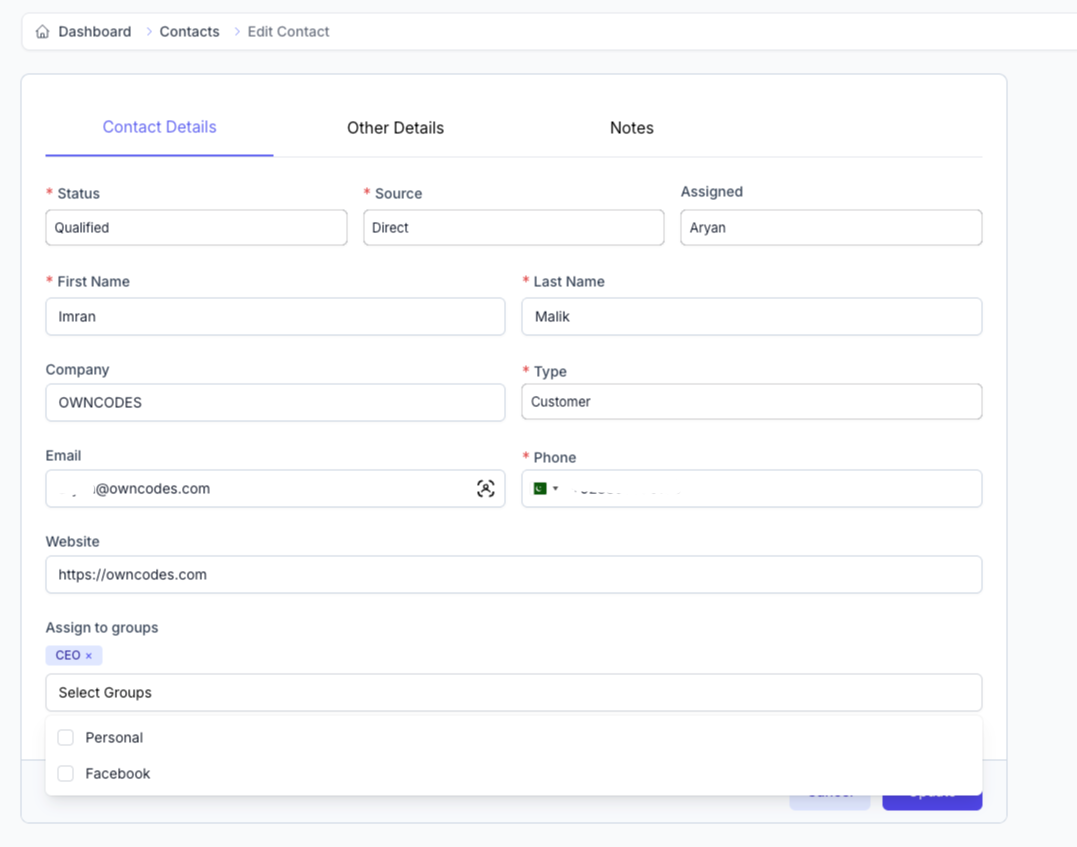
- In the Assign to Group dropdown, select the desired group(s).
- Click Save.
Editing an Existing Contact
- Go to Contacts.
- Click Edit next to the contact name.
- Update the group assignment field.
- Save changes.

Filtering and Managing Contacts by Group
To work with contacts in a specific group:
- Navigate to Contacts.
- Use the Group Filter dropdown or search bar located at the top of the contact list.
- Select the desired group.
- The list will now display only the contacts belonging to that group.
Common Use Cases:
- Send bulk messages to a group of leads.
- Export contacts for a specific segment (e.g.,
CEO). - Segment leads, clients, or CEO for reporting.
- Apply bulk actions to a group (tagging, status update, etc.).
Real-World Example: Using Groups Effectively
Imagine you're running a marketing campaign for WhatsApp users:
- Create a group called
whatsapp-group-campaign-Q4. - Add all WhatsApp leads or customers from that campaign to this group.
- Filter the group from the Contacts page.
- Send a targeted message or offer to all members of the group, ensuring high relevance.
Best Practices
| Recommendation | Description |
|---|---|
| Use clear names | E.g., leads-august, newsletter-subscribers, referral-program |
| Keep names consistent | Improves filterability and consistency across your team. |
| Clean unused groups | Periodically review and delete groups not in use to reduce clutter. |
| Avoid duplicates | Prevent confusion and errors during campaign setup and automation. |
| Segment meaningfully | Use groups to drive campaign logic and targeted messaging. |
Benefits of Group Management
- Organized contact database
- Easier segmentation for marketing and messaging
- Improved personalization of communications
- Better data hygiene and performance
- Save time and reduce manual errors