Email Templates
WhatsCloud provides a centralized Email Templates interface to help administrators manage automated email communications. These templates are critical for system-generated notifications, ensuring users are well-informed and providing a consistent, branded experience at every touchpoint.
💡 Use Case: You can customize essential emails like account verification, welcome messages, and contact assignment alerts to reflect your brand voice and provide clear, professional communication to your users.
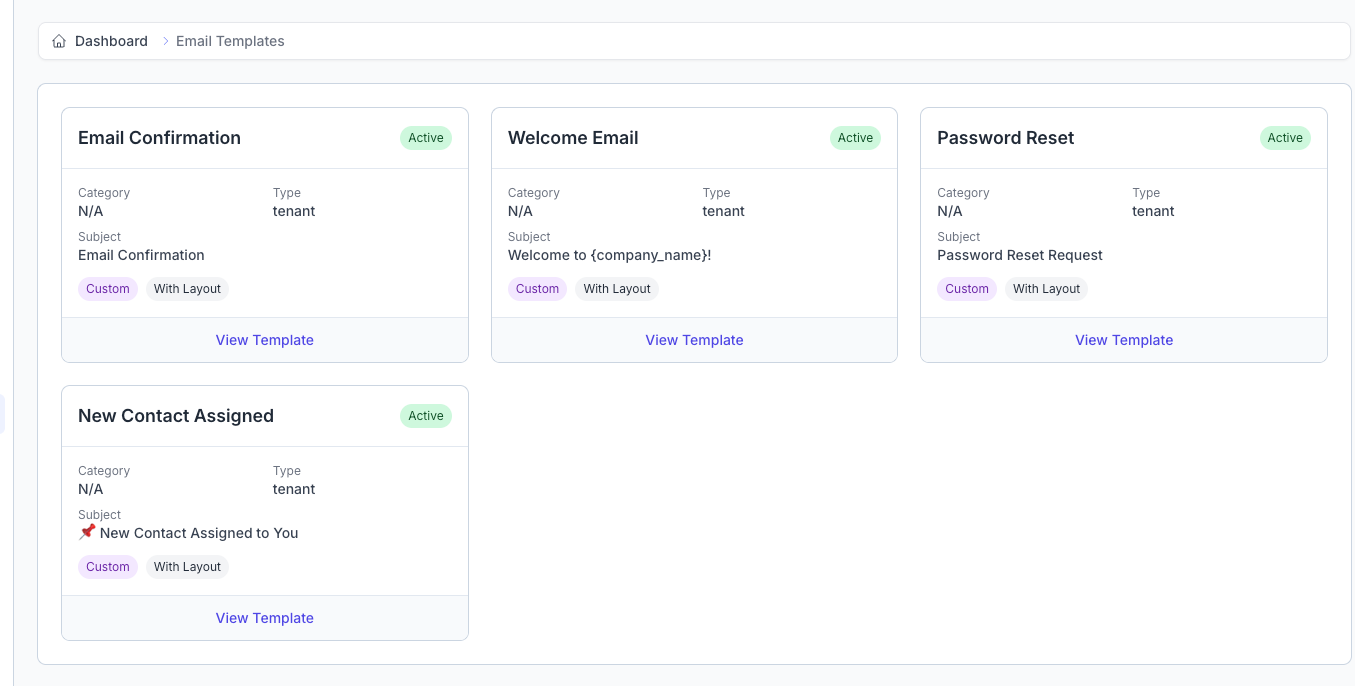
Available Email Templates
Each template supports a specific, critical use case within the platform and can be tailored to suit your organization’s needs.
1. Email Confirmation
- Purpose: Sent automatically to users when they sign up for an account.
- Goal: Verify the user's email address for account security and compliance.
- Type:
tenant(System-wide template) - Subject: Email Confirmation
2. Welcome Email
- Purpose: Welcomes new users to your WhatsCloud platform after successful registration or confirmation.
- Goal: Establish rapport and guide users on their next steps after registration.
- Subject: Welcome to {company_name}!
3. Password Reset
- Purpose: Triggered when a user requests to reset their password via the login screen.
- Goal: Facilitate secure password recovery via a unique, time-sensitive link.
- Subject: Password Reset Request
4. New Contact Assigned
- Purpose: Notifies specific team members when a new contact or lead is assigned to them.
- Goal: Keeps sales and support teams updated with lead activity and ensures timely follow-up.
- Subject: 📌 New Contact Assigned to You
Email Template Editor
Administrators can edit template content using the in-app Email Template Editor, which offers a robust set of tools for branding and personalization.
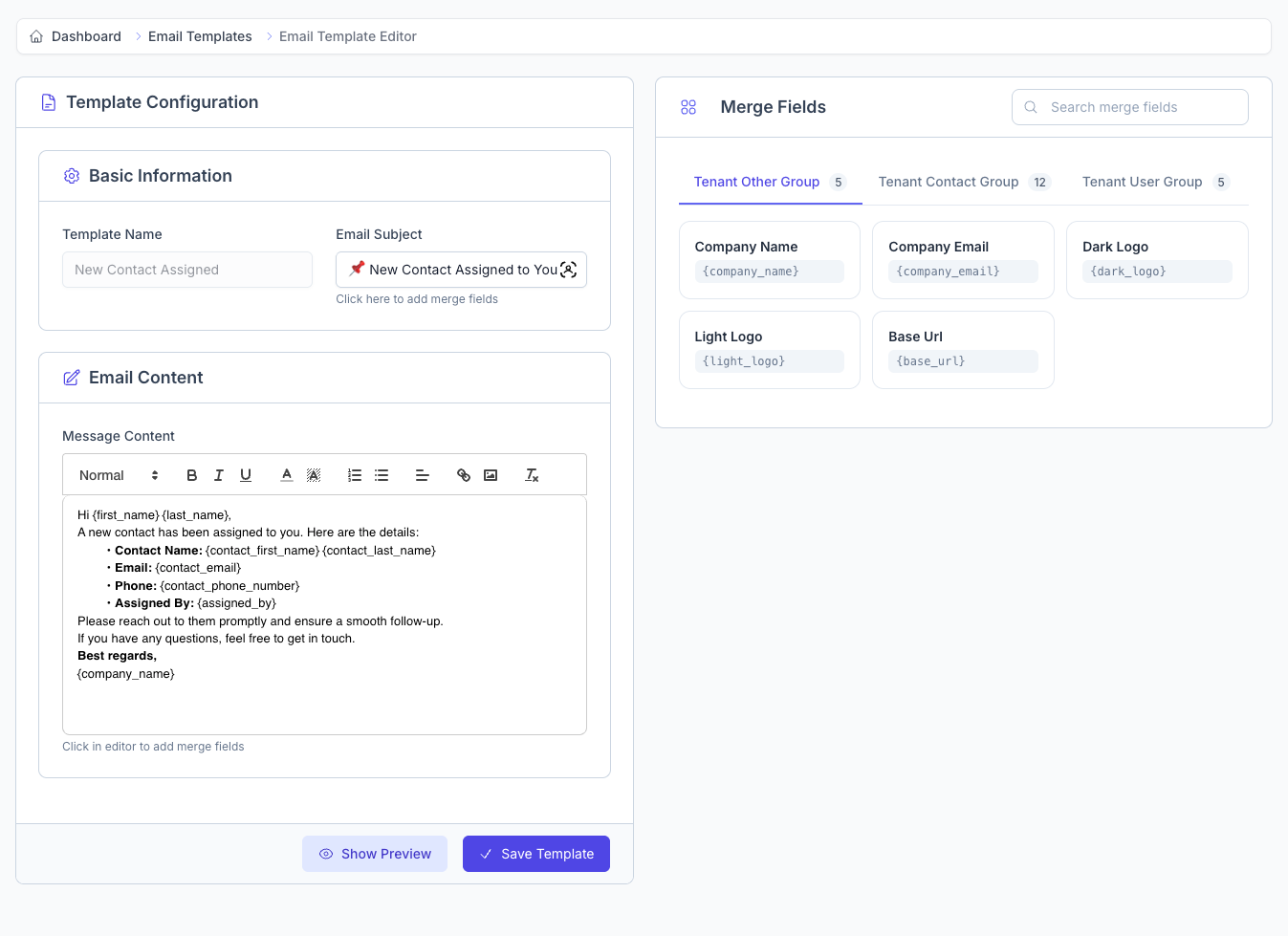
Key Components
Template Configuration
These settings define the identity and basic content of the email:
- Template Name: Internal reference name (e.g., "Email Confirmation").
- Email Subject: The line visible to recipients in their inbox. You can use merge fields directly here.
Merge Fields Panel
Merge fields are placeholders that automatically pull dynamic data into the message when the email is sent, ensuring personalization and accuracy.
| Group | Field | Description & Example |
|---|---|---|
| Tenant Other Group | {company_name} |
Displays your registered company name. |
{company_email} |
Automatically includes your business email address. | |
{light_logo}, {dark_logo} |
Inserts your branded logo URL, adjusting based on the user's selected theme. | |
{base_url} |
Links users back to your application or website. | |
| Tenant User Group | {first_name}, {last_name} |
Greets users personally based on their account information. |
You can drag or copy these fields into the subject or the message content areas.
Email Content Editor
A rich text editor enables you to write, format, and structure your email content. Use this section to:
- Personalize messages extensively using merge fields.
- Add call-to-action buttons or hyperlinks (e.g., for email verification or logging in).
- Use HTML or rich formatting (bold, italics, lists) for a strong, branded email structure.
How to Use the Email Template Feature
- Go to the Email Templates section in your WhatsCloud admin panel.
- Click on View Template for the specific email you want to customize.
- Modify the subject line and the main email content as needed, utilizing available merge fields.
- Click Show Preview to test how the email will look with dynamic data before finalizing changes.
- Click Save Template to apply your changes across the system.
Benefits
- Automated Communication: Reduces manual administrative effort by automating essential user notifications.
- Custom Branding: Use logos, company names, and custom styles for a professional, branded experience.
- Dynamic Personalization: Merge fields ensure every email is unique and personally addressed to the recipient.
- Security-First Messaging: Customizing confirmation and reset templates improves user trust and system security.