🔗 Webhook Management
The Webhook Management Dashboard provides a centralized interface to create, configure, monitor, and maintain all your webhook integrations within WhatsCloud. This allows real-time communication between your storefront (like WooCommerce, Shopify or Any third party CRM) and your messaging system.
📊 Dashboard Overview
The webhook management system provides a comprehensive control center to manage your integrations effectively:
- ✅ Create and manage multiple webhook listeners.
- 📈 Monitor webhook activity and performance metrics in real-time.
- ⚙️ Configure webhook endpoints and authentication methods.
- 📊 Track success rates and request statistics to diagnose issues.
- 🔧 Test and debug integrations directly from the interface.
🎯 Dashboard Features
Statistics Overview
The main dashboard displays key performance metrics at a glance:
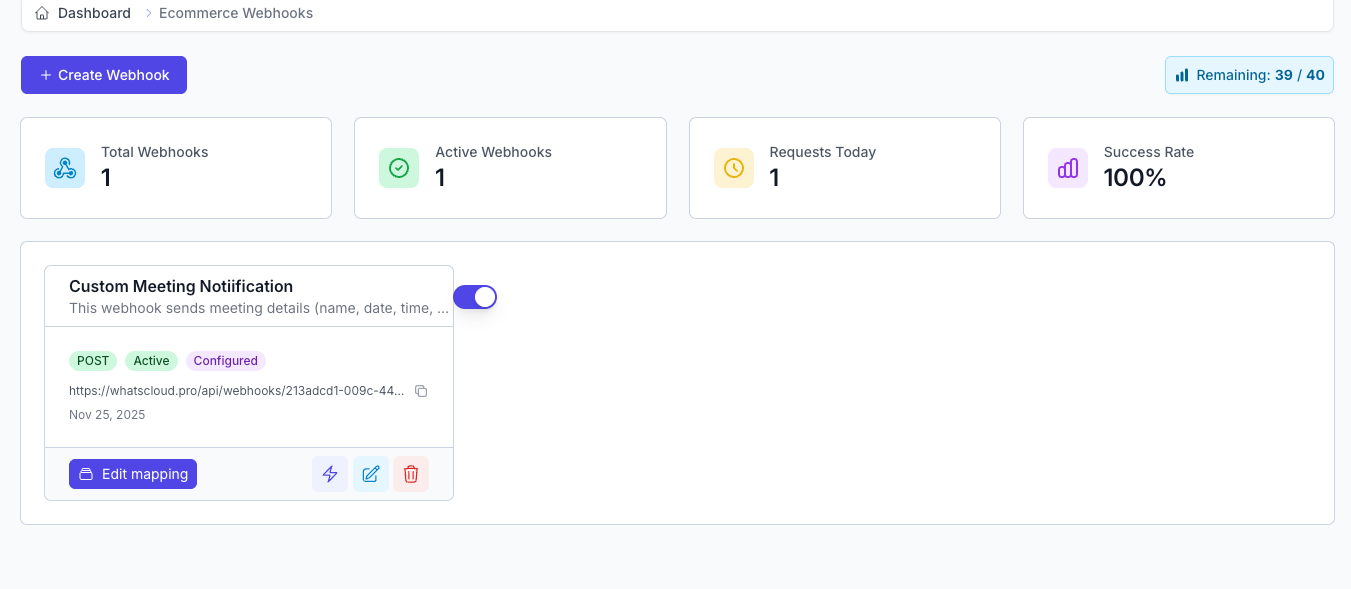
💡 Quota Management
The "Remaining" counter shows your webhook limit based on your WhatsCloud plan. You may need to upgrade your subscription for higher capacity limits.
➕ Creating a New Webhook
Step 1: Access Creation Form
Click the "+ Create Webhook" button from the main dashboard to open the webhook configuration dialog.
Step 2: Configure Basic Settings
Fill in the required webhook information to define its purpose and security:
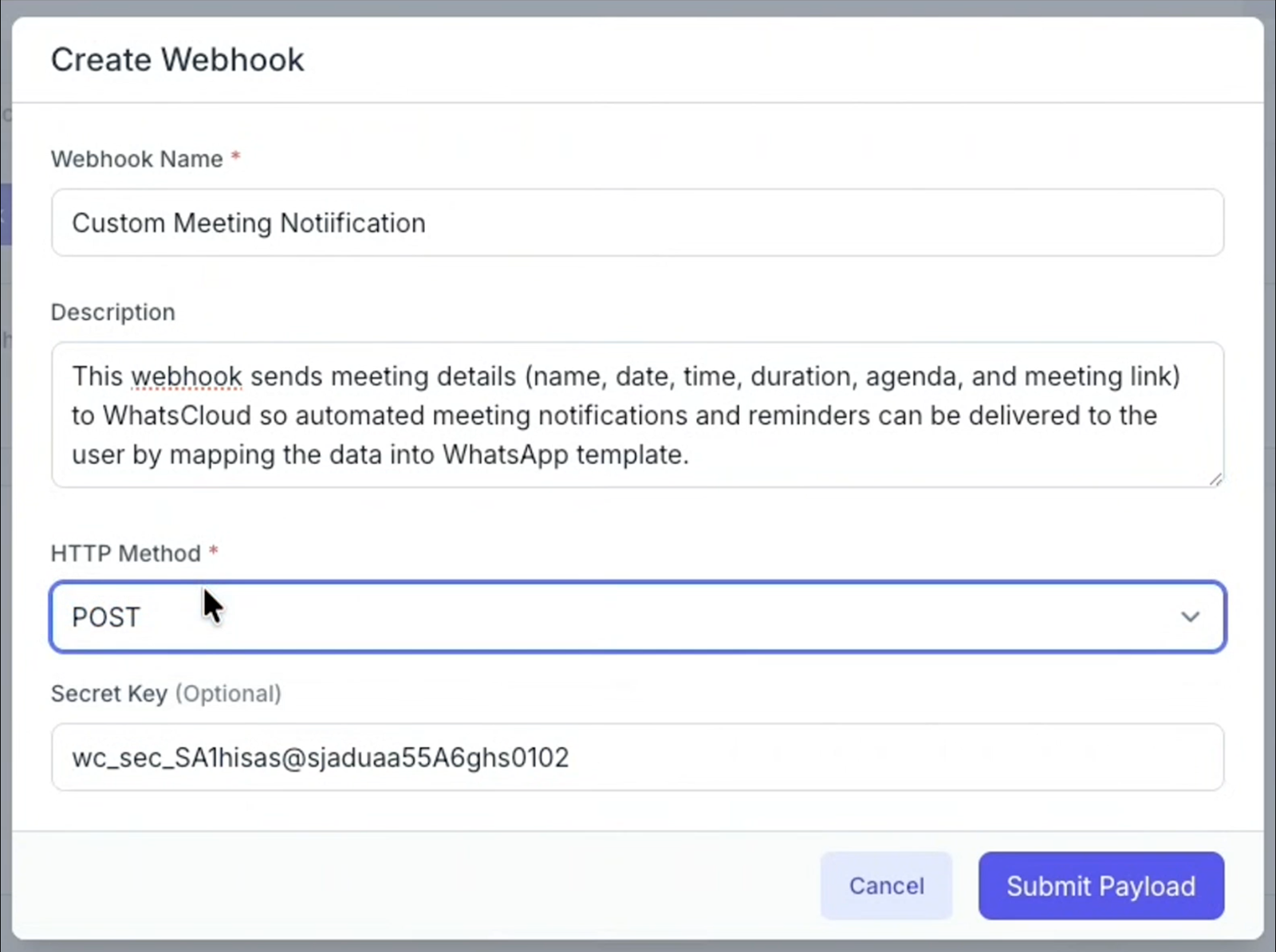
Webhook Name *
- Provide a descriptive name for your webhook.
- Example:
"Custom Meeting Notiification". - Purpose: Helps identify the webhook's function in the dashboard and logs.
Description
- Add a detailed description of the webhook's purpose.
- Example:
"This webhook sends meeting details (name, date, time, duration, agenda, and meeting link) to WhatsCloud so automated meeting notifications and reminders can be delivered to the user by mapping the data into WhatsApp template." - Benefits: Improves webhook management and team documentation.
HTTP Method *
- Select the HTTP method for incoming webhook requests.
- POST: The most common and recommended method for sending webhook data.
Secret Key (Optional)
- Enter a secret key for webhook authentication and security.
- Example:
wc_sec_SA1hisas@sjaduaa55A6ghs0102 - Purpose: Allows you to verify the webhook authenticity in your destination application and prevent unauthorized requests.
🔐 Security Best Practice
Always use secret keys for production webhooks to ensure secure data transmission and verification.
Step 3: Submit Configuration
Click "Save" to create the webhook with your specified configuration.
🔗 Webhook URLs and Integration
Generated Endpoints
Each webhook listener created receives a unique URL in the format:
https://whatscloud.pro/api/webhooks/[webhook_id]

Example: https://whatscloud.pro/api/webhooks/213adcd1-009c-441e-b70a-d01396a9ff7b
Integration Steps
- Copy the Webhook URL from the webhook card in the dashboard.
- Configure your source system (e.g., WooCommerce, Shopify) or any third party to send data to this URL when a specific event) occurs.
- Set up authentication in the source system using the secret key you provided (if applicable).
- Test the integration using the lightning bolt test action provided in the dashboard.
🧪 Testing and Debugging
Webhook Payload Testing
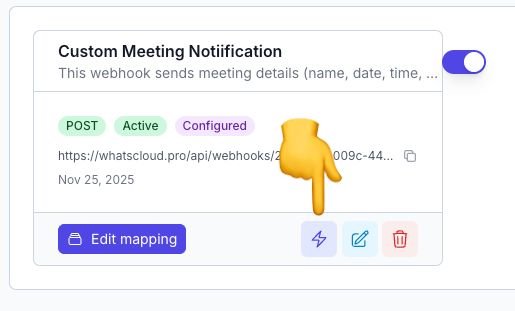

The system provides a payload testing interface to help you verify data structure:
- 📋 JSON Payload Display: View sample webhook data received.
- 🔄 Sync Button: Retrieve real webhook data from the last event.
- 🗑️ Delete Button: Clear test data from the log.
- 💡 Testing Instructions: Step-by-step guidance for sending a test payload.
Testing Process:
- View sample payload received by the configured webhook to understand the expected format.
- Click the Sync button to start listening for incoming data.
- Submit test data from your webhook endpoint (e.g., creating a test order in WooCommerce).
- Verify payload structure and content received in the dashboard to ensure correct mapping for your automations.