Staff & Role Management
This documentation provides a complete overview of user and role creation, editing, billing configuration, and access control.
Staff Management refers to the process of managing admin staff profiles, account details, and their assigned roles. Role Management allows assigning capabilities to each role based on required access.
Accessing the Staff & Role System
Navigation Path
- Log in to the Tenant Panel
- Navigate to: Setup → Staff List
Required Permissions
| Permission Key | Purpose |
|---|---|
admin.Staff.view |
View existing staff |
admin.Staff.create |
Add new staff |
admin.Staff.edit |
Update staff profiles |
admin.Staff.delete |
Remove staff from platform |
admin.roles.view |
View defined roles |
admin.roles.create |
Create new role types |
admin.roles.edit |
Edit permissions for each role |
Admin User Management
Viewing the Staff List
Location: Tenant Panel → Setup → Staff → Staff List
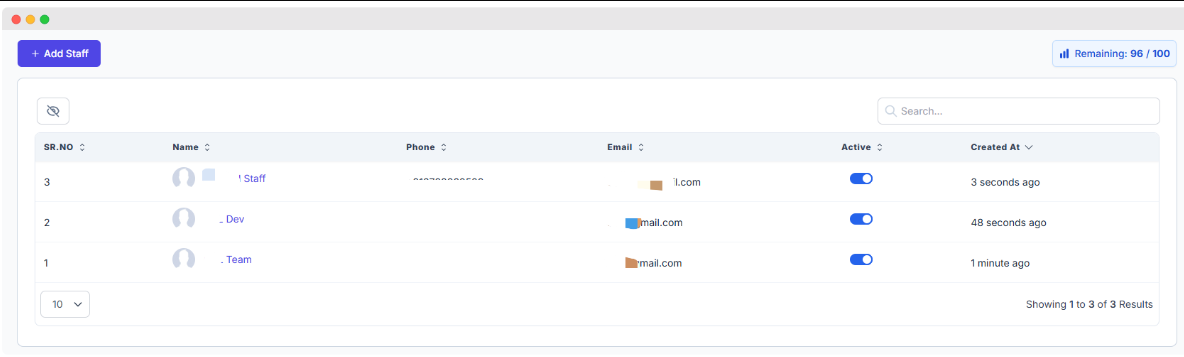
The Staff List view gives a summarized look at all admin users.
Details Displayed:
- Serial Number (SR.NO): Order in list
- Name: Staff profile name
- Phone: Contact number (optional)
- Email: Primary contact and login credential
- Active Status: On/Off toggle to enable/disable login access
- Created At: When the user was added
Search & Filter Options:
- Search by Name or Email
- Filter by Role, Status, Department
- Sort by Created At for recent additions
Creating a New Staff Member
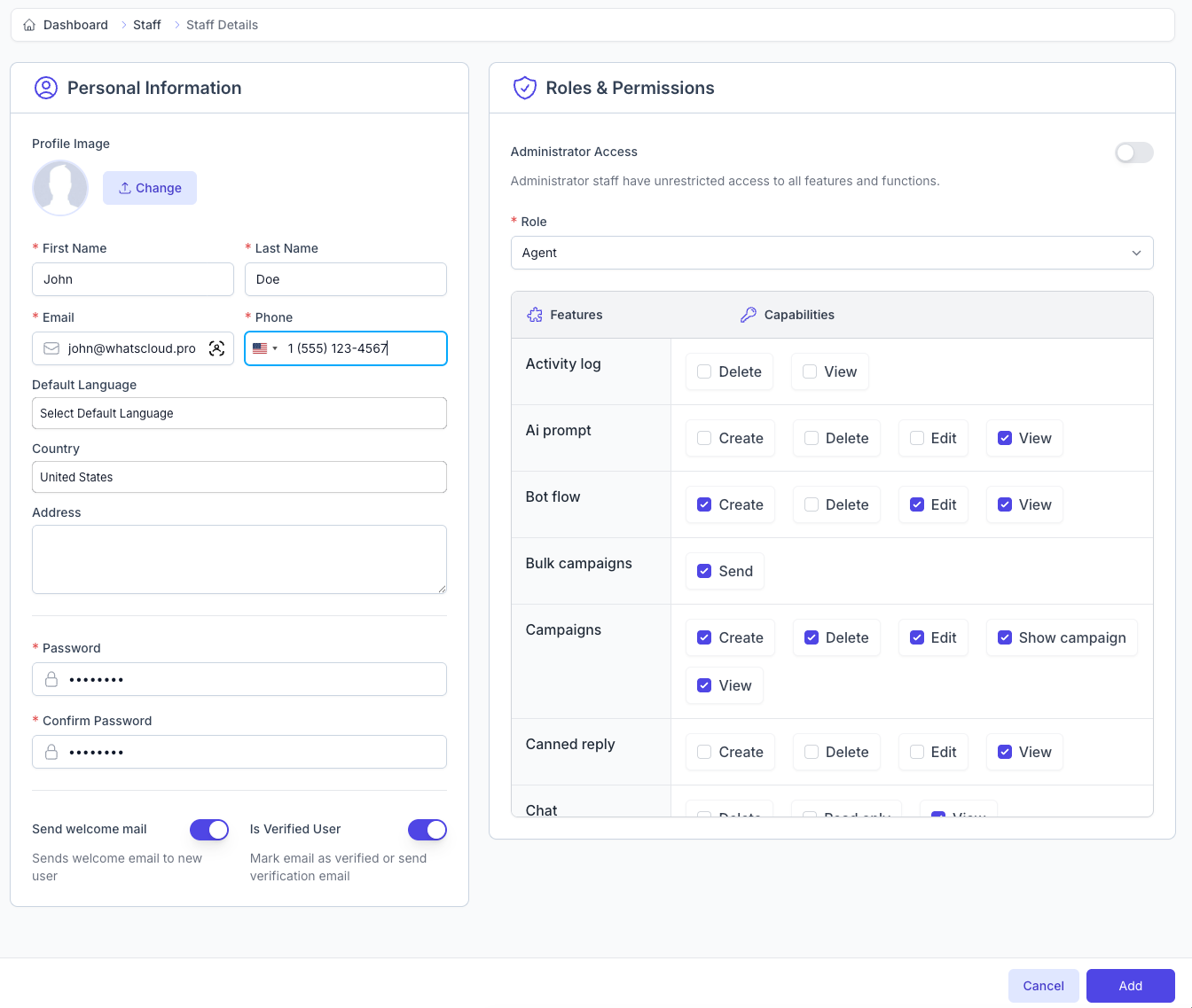
Fields and options:
| Field | Description |
|---|---|
| First & Last Name | User’s full name |
| Required login and notification email | |
| Phone | Optional; used internally |
| Password | Initial login password |
| Confirm Password | Re-enter to confirm accuracy |
| Default Language | UI language preference |
| Country / Address | Location for contact records |
| Role | Assign access based on predefined roles |
| Profile Image | Avatar for the staff member (JPG/PNG, max 5MB) |
| Send Welcome Mail | Toggle to send an automated welcome email |
| Verified User | Marks email as verified to skip future verification |
🟣 Click "Add" to save the staff profile.
Editing Existing Staff
Location: Tenant Panel → Staff → Edit Staff
Editable elements:
- Basic Info: Name, email, phone, language
- Profile Photo: Click ‘Change’ to upload new image
- Role Management: Change user role or permission set
- Password Reset: Enforce secure access reset
- Status: Toggle between active or inactive
- Verification Toggle: Re-verify or mark trusted accounts
🔒 Security Notes:
- Role changes take effect instantly
- Email changes require confirmation
- Password changes will force logout
Admin User Profile Details
Location: Admin Panel → Profile
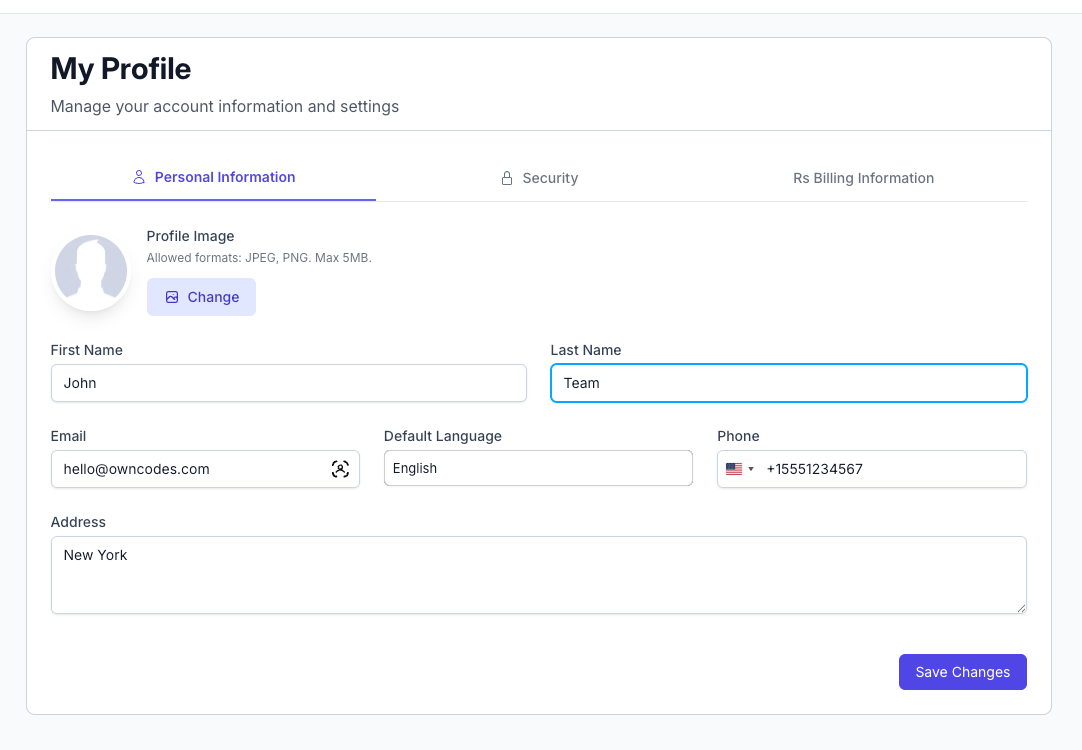
This section displays:
- Personal Information (Name, Email, Language)
- Profile Picture upload feature
- Phone & Country
- Address (optional)
Password Management
- Update and confirm new passwords
- Passwords are hidden behind dots for security
Email Settings
- Welcome Email Toggle: Sends introduction mail to new staff
- Verified Status Toggle: Confirms ownership of the email
Billing Information
Location: Admin Panel → Profile → Billing Information
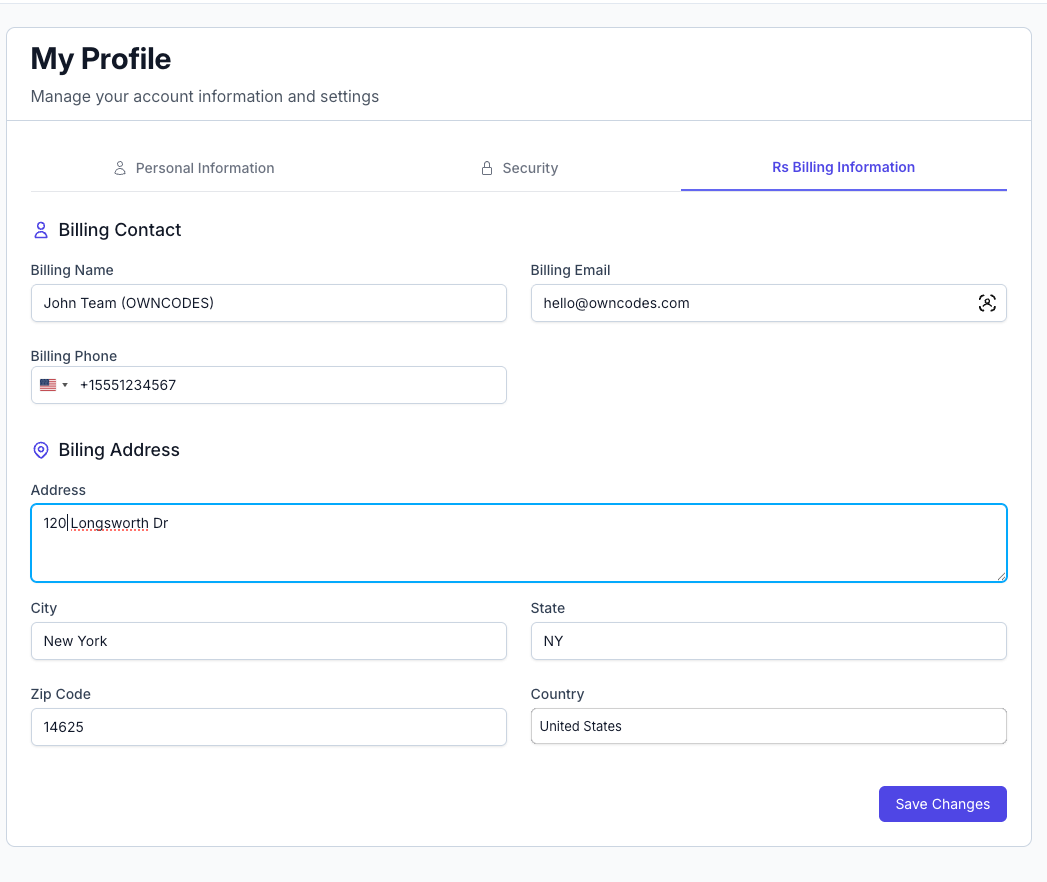
Billing details help for subscriptions, invoice generation, and account verification.
| Field | Description |
|---|---|
| Billing Name | Name to appear on invoices |
| Billing Email | Email to receive billing updates |
| Billing Phone | Contact number |
| Address | Street address + zip code |
| City/State | Administrative region |
| Country | Country of business operation |
✅ Click "Save Changes" to apply updates.
Role & Permission Management
Viewing Role List
Location: Admin Panel → Staff → Roles
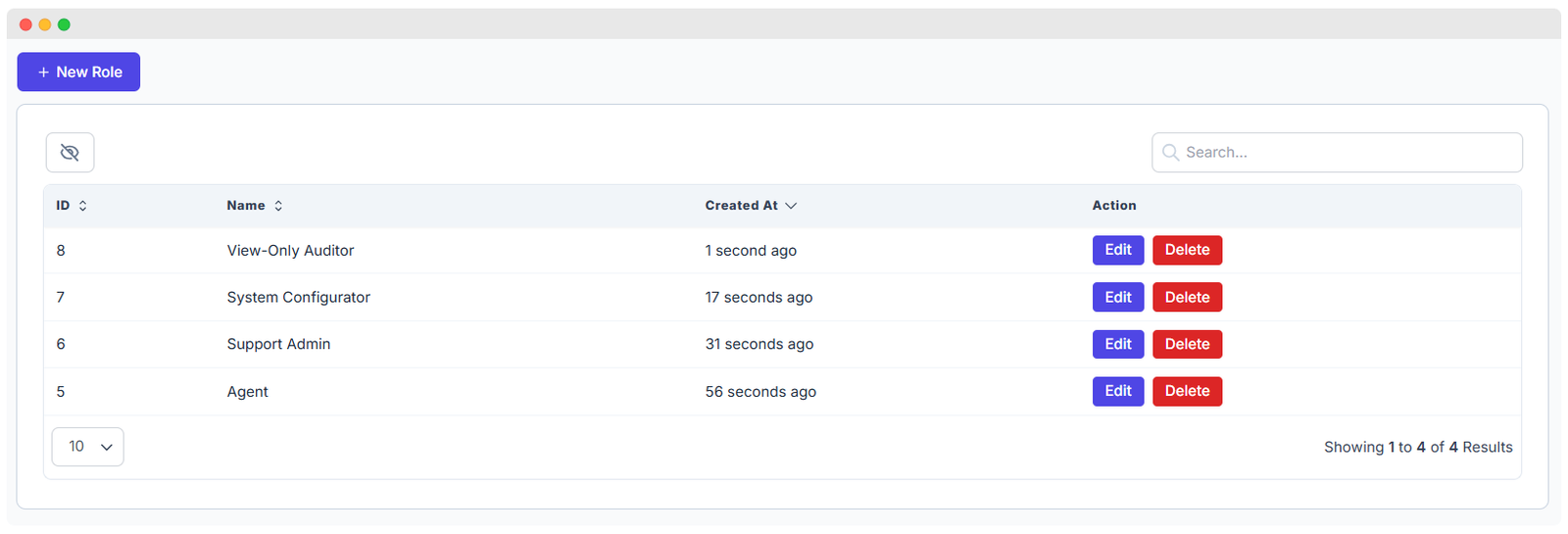
A complete table of roles with metadata:
- Role Name: e.g., Admin, Support, Billing
- Description: Purpose of the role
- Staff Count: Number of users assigned
- System Role: Cannot be deleted if marked
- Created / Modified Dates: Audit trail
Creating a Role
Location: Admin Panel → Staff → Roles → Create Role
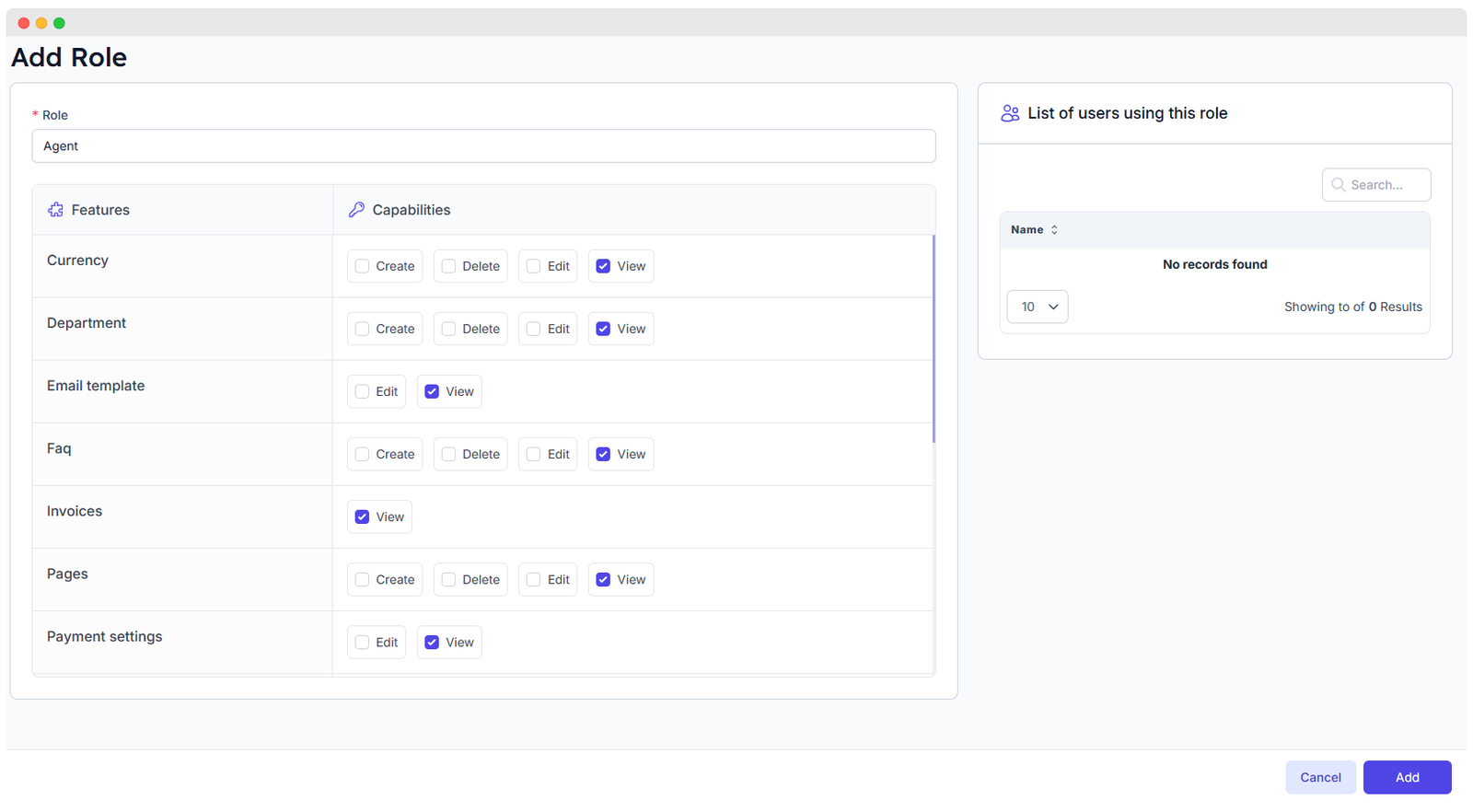
| Field | Description |
|---|---|
| Role Name | Name for the role (e.g., Billing Agent) |
| Role Slug | System-friendly identifier (auto-generated) |
| Description | Internal documentation for other admins |
| Permissions | Choose access per feature (view, edit, delete...) |
Advanced Options:
- Clone Role: Copy existing permissions to save time
- Default Role: Auto-assigned to newly created users
- System Role: Protect from deletion or editing
Editing Permissions
Each role can be assigned detailed permissions across various feature modules:
| Module | Permissions Available |
|---|---|
| Activity Log | View, Delete |
| AI Prompt | Create, Edit, Delete, View |
| Campaigns | Create, Edit, Delete, Show Campaign, View |
| Canned Reply | Create, Edit, Delete, View |
| Chat | Read only, View, Delete |
| Connect Account | Connect, Disconnect, View |
✅ Assign permissions using checkboxes when editing roles.