AI Assistant (Settings)
Overview
The AI Assistant Settings page allows you to fine-tune the behavior of your automated assistants. You can define keywords that instantly stop the bot, add a consistent footer to all AI messages, and set a natural-sounding delay for responses.
These settings help create a more professional and controlled user experience, ensuring the AI behaves exactly as you intend.
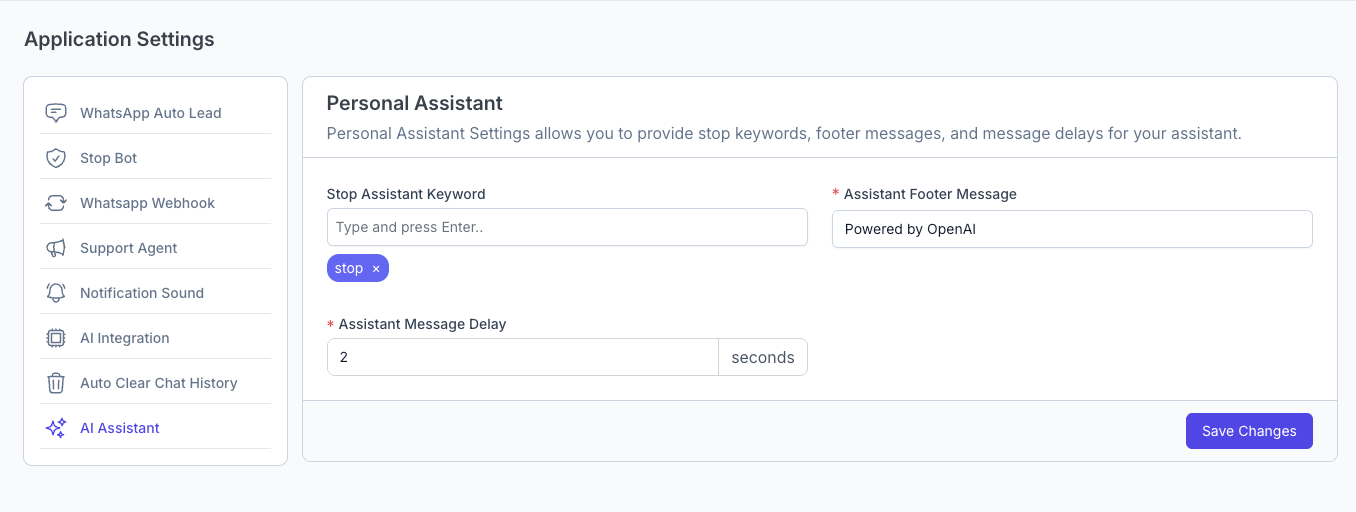
Configuration Options
This panel provides three key settings to customize your AI assistants:
1. Stop Assistant Keywords
- Field Type: Text Input (supports multiple tags)
- Purpose: Specify one or more keywords that, when sent by a user, will immediately stop the AI assistant from replying to that specific user.
- How it works: You can type a keyword (e.g.,
stop,agent,human) and press Enter to add it as a tag. - Use Case: This provides an "escape hatch" for users who want to exit the AI conversation and speak to a human agent or simply stop the bot.
2. Assistant Footer Messages
- Field Type: Text Input
- Purpose: Enter a short message that will be automatically appended to every message sent by the AI assistant.
- Example:
This response was generated by an AI.orPowered by WhatsCloud AI. - Use Case: This is useful for transparency, letting users know they are interacting with an AI, or for branding purposes.
3. Assistant Message Delay (in Seconds)
- Field Type: Number Input
- Purpose: Set a delay, in seconds, before the AI assistant's reply is sent.
- Example: Setting this to
3will make the bot wait 3 seconds before responding, simulating a more natural, human-like typing speed. - Use Case: An instant reply can feel robotic. A short delay improves the user experience and makes the conversation feel more natural. Leave it at
0or empty for instant responses.