Create Template
WhatsCloud allows you to create WhatsApp message templates directly within the platform using the WhatsApp Cloud API. This feature provides a convenient way to create templates without leaving your WhatsCloud dashboard.
Overview
The Create Template feature in WhatsCloud leverages the WhatsApp Cloud API to create message templates. While this provides convenience, there are some limitations compared to creating templates directly in Meta Business Manager.
Flow Templates Not Supported: Flow template creation is not supported in WhatsCloud. However, flow templates are supported for sending. You can create flow templates directly in your Meta WhatsApp account and then sync them using the Load Template button.
Accessing Create Template
Navigate to Tenant Area → Templates → click on Create Template to access the template creation interface.
Template Types
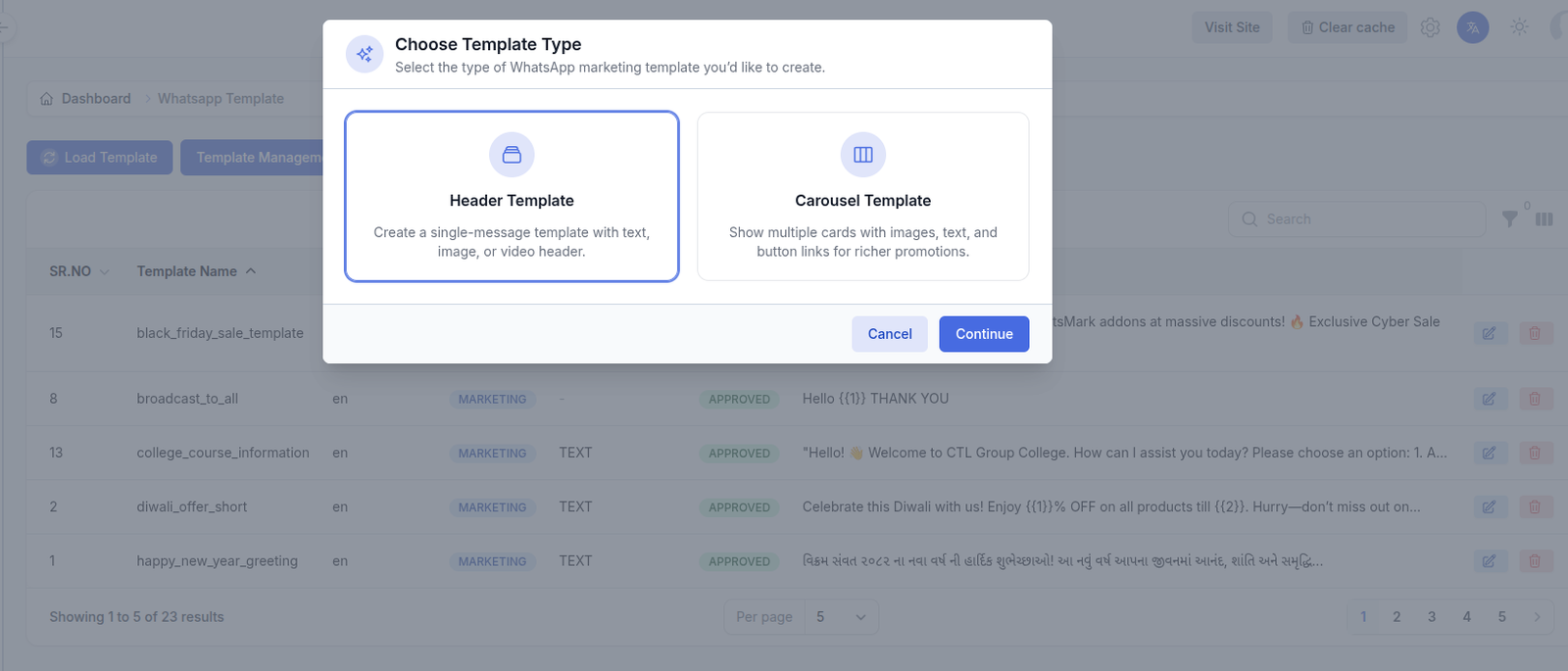
When you click the Create Template button, you can choose between two template types:
1. Header Template
A single-message template with text, image, or video header. This is the most common template type used for marketing, transactional messages, and customer communication.
- Promotional messages
- Order confirmations
- Appointment reminders
- Customer notifications
2. Carousel Template
Show multiple cards with images, text, and button links for richer promotions. Each card can have its own image/video and call-to-action buttons.
- 2–10 interactive cards in a single message
- Individual images or videos per card
- Separate body text and buttons for each card
- Perfect for product showcases and catalogs
WhatsCloud Exclusive: Carousel templates can only be created in WhatsCloud (not available in Meta Business Manager).
Creating a Header Template
The header template creation process consists of 5 steps. Each step must be completed before moving to the next.
Step 1: Basic Information
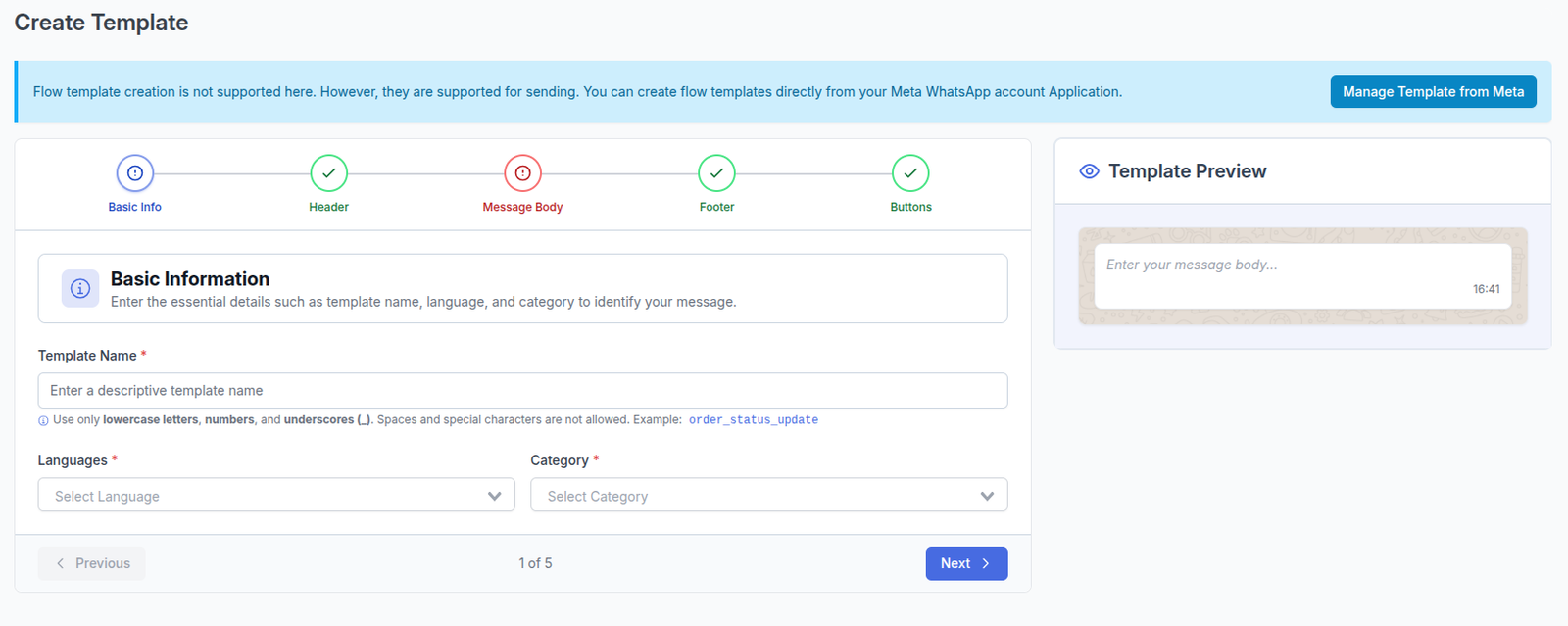
The first step requires essential template details.
Template Name
The template name must follow Meta's naming conventions:
- Lowercase letters only (a-z)
- Numbers allowed (0-9)
- Underscores allowed (_)
- No spaces allowed
- No capital letters allowed
Example of Valid examples:
welcome_new_userorder_confirmation_2024payment_reminder_01discount_offer_special
Example of Invalid examples:
Welcome Messagecontains spaces and capitals)order-confirmation(contains hyphen)Payment Reminder(contains space and capitals)
Language
Select the language in which you're creating the template. This determines the language that will be used for template content and variables.
Available languages include:- English (en_US, en_GB)
- Spanish (es)
- Portuguese (pt_BR)
- Indonesian (id)
- And many more...
Category
Choose the appropriate category for your template. WhatsApp offers three categories, each with different pricing and use cases:
- Marketing: Promotional content and offers
- Utility: Transactional and service messages
- Authentication: One-time passwords (OTP) only
If Authentication is selected, the flow is different and follows authentication template rules.
Step 2: Header Configuration
Headers are optional but recommended for better engagement.
Header types supported in WhatsCloud:
- Text Header: Max 60 characters, supports one dynamic variable.
- Image Header: JPG/PNG, max 5MB.
- Video Header: MP4/3GP, max 16MB.
- Document Header: PDF/DOC/DOCX/XLS/XLSX/PPT/PPTX, max 100MB.
For Image, Video, and Document headers, upload a sample file during creation. At sending time, you can use different media files of the same type.
Step 3: Message Body
This is the main content section of your template.
- Character limit: 1024
- Dynamic variables supported:
{{1}},{{2}},{{3}}... - Formatting supported: bold, italic, strikethrough, code
Step 4: Footer Configuration
Footer is optional and appears at the bottom of the template.
- Maximum 60 characters
- No variables allowed
- Useful for disclaimers and unsubscribe instructions
Step 5: Interactive Buttons
You can add up to 3 buttons per template. WhatsCloud supports:
- Quick Reply Buttons
- Website URL Buttons
- Phone Number Buttons
Dynamic Button URL Variables
You can include {{1}} in Website URLs to make them dynamic. During send flows, WhatsCloud shows a Button URL Variables input so you can replace it with a static value or merge field.
URL in template:      https://yoursite.com/invoice/{{1}}
You enter:            {contact_id}
Sent to John (42):    https://yoursite.com/invoice/42
Sent to Sarah (91):   https://yoursite.com/invoice/91
For full details, see Dynamic Button URL Variables.
Step 6: Submit Template
After completing required fields, click Create Template to submit your template to Meta for review.
Template Submission & Approval Process
Submission to Meta
- Template data is validated against Meta guidelines.
- If valid, template is submitted to Meta.
- Initial status is
PENDING. - Meta starts the review process.
If errors occur, review details, fix issues, and resubmit.
Approval Timeline
Typical review duration: 24–48 hours.
Possible statuses: PENDING, APPROVED, REJECTED.
Tracking Template Status
Status can be updated through webhook events or manual sync via Load Template.
Creating Carousel Templates
Carousel templates let you send multiple cards in one message, each with media, body text, and buttons.
Marketing Only: Carousel templates are designed for marketing use cases and should not use Authentication category.
Carousel Steps
- Basic Information (same naming and language rules)
- Message Body (intro text before cards)
- Cards Section (2 to 10 cards, each with header + body + buttons)
- Submit Template
Each card requires:
- Header (image or video)
- Body text
- At least 1 button (max 2)
Using Approved Carousel Templates
Approved carousel templates can be used in Template Bot and Initiate Chat flows.
Carousel Template Limitations
- Cannot be created in Meta Business Manager
- Document headers not supported in carousel cards
- Minimum 2 and maximum 10 cards
- Each card must include all required elements
Creating Authentication Templates
Authentication templates let businesses send OTP and verification codes without requiring user initiation.
These templates are strictly for authentication use cases and not for promotional communication.