Dynamic Button URL Variables 1
WhatsApp template Website URL buttons support a 1 placeholder in the link. WhatsCloud lets you fill this placeholder with a static value or a merge field (like {contact_id}) so every recipient gets a button pointing to thier own page -- automatically.
Template URL:  https://yoursite.com/invoice/{{1}}
You enter:     {contact_id}
Sent to John (ID 42):   https://yoursite.com/invoice/42
Sent to Sarah (ID 91):  https://yoursite.com/invoice/91
How It Works End to End
| Step | What happens |
|---|---|
| 1. Create template in Meta (or WhatsCloud) | Add a Website URL button with {{1}} in the URL. |
| 2. Sync in WhatsCloud | WhatsCloud detects buttons that contain URL placeholders. |
| 3. Select template anywhere | A Button URL Variables input appears automatically. |
| 4. Enter a static value or @ merge field | Type a fixed value, or pick a contact field from the dropdown |
| 5. WhatsCloud resolves and sends | Each recipient's merge field is replaced with their real data before delivery. |
Part 1 - Create the Template
Step 1: Add a Website URL Button with 1
In Meta WhatsApp Manager (or inside WhatsCloud template creation), add a Website URL button and place 1 where the dynamic value should go.
| Pattern | Example |
|---|---|
| Path segment | https://yoursite.com/invoice/1 |
| Query parameter | https://yoursite.com/track?id=1 |
| Subdomain | https://1.yoursite.com/portal |
Only Website URL button support 1
Quick Reply and Phone Number buttons do not have this capability.
Create directly in WhatsCloud
You can enter 1 in the Website URL field when creating a template in WhatsCloud. The live preview will show the button with the placeholder.
Step 2: Submit and Wait for Approval
Submit the template to Meta. Once approved, WhatsCloud syncs it and the template becomes available in supported send flows.
Part 2 - Fill the Variable in Send Flow
Step 3: Select Template
When you select a template containing a Website URL button with {{1}}, a Button URL Variables section appears.
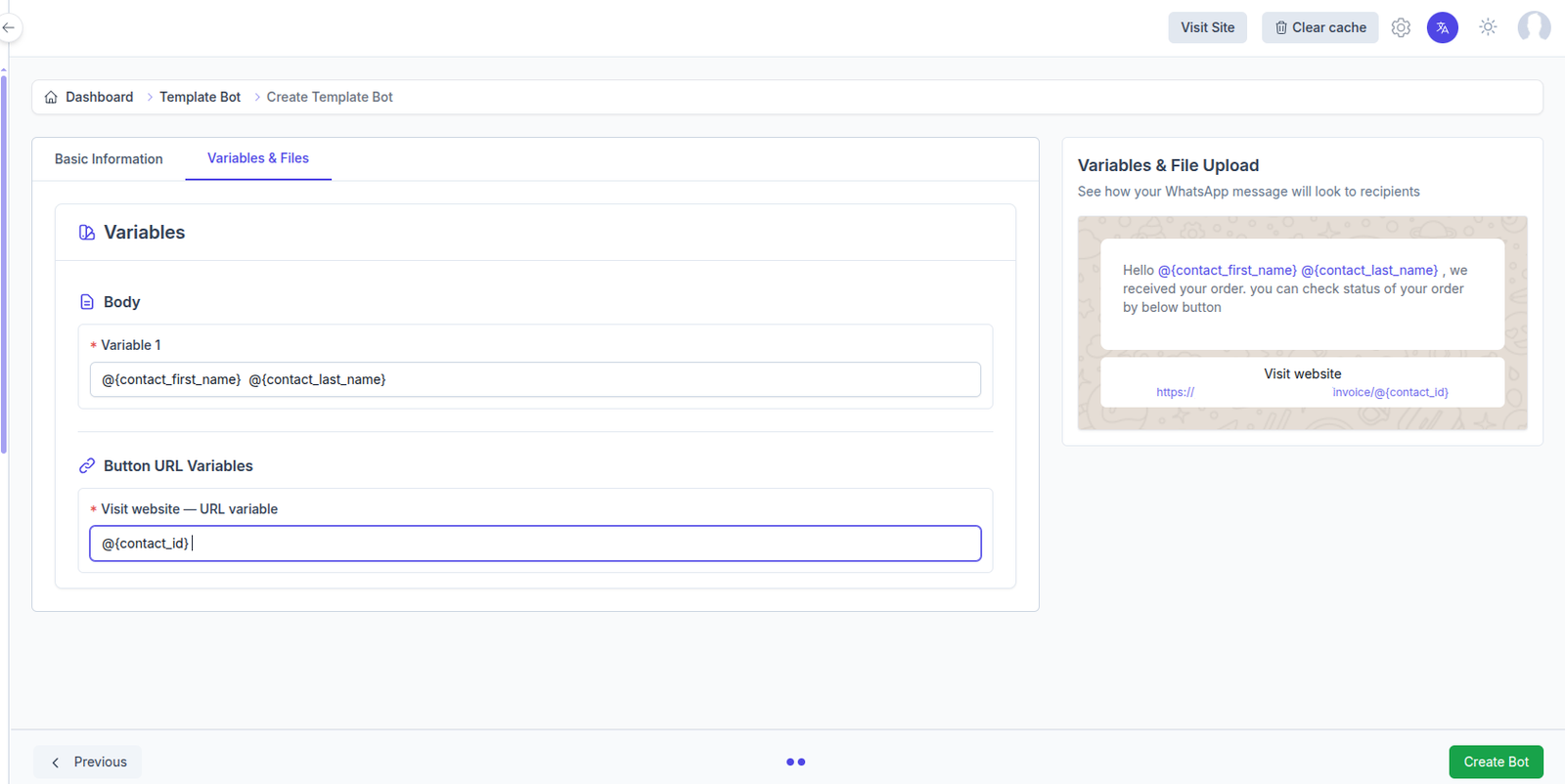
Step 4: Enter Static Value or Use @ Merge Field
- Static value: -- Type any fixed text. Example:
ORD-2024-001. Every recipient gets this same value. - Merge field: Type
@to open the merge field picker, then select a field (e.g.,{contact_id}). WhatsCloud replaces it with each recipient's real data at send tim
Combine both:
You can mix static text and a merge field. For example, entering USER-{contact_id} in a URL

Like: https://site.com/ref/1
produces: https://site.com/ref/USER-42
for John (ID 42)
Required field:
WhatsCloud will not let you send if the Button URL Variables input is empty — it prevents broken links from reaching customers.
Step 5: Send - WhatsCloud Resolves and Delivers
On send, WhatsCloud:
- Reads the entered value (e.g.,
{contact_id}). - Looks up the real value for each contact from the database.
- Passes the resolved value to WhatsApp API as the
1parameter. - WhatsApp builds the final URL and delivers the message with each recipient's unique button link.
Available Merge Fields
Type @ in Button URL variables input to open merge field suggestions.
Contact Fields
| Field label | Key | Resolves to |
|---|---|---|
| Contact First Name | {contact_first_name} |
Contact first name |
| Contact Last Name | {contact_last_name} |
Contact last name |
| Contact ID | {contact_id} |
Unique contact ID in WhatsCloud |
| Contact Email | {contact_email} |
Email address |
| Contact Phone Number | {contact_phone_number} |
Phone number |
| Contact Company | {contact_company} |
Company name |
| Contact Website | {contact_website} |
Website URL |
| Contact Type | {contact_type} |
Lead, Customer, or Guest |
| Lead Status | {lead_status} |
Current lead status |
| Lead Source | {lead_source} |
Lead source |
| Lead Assigned | {lead_assigned} |
Assigned staff name |
| Assigned By | {assigned_by} |
Creator name |
Company and System Fields
| Field label | Key | Resolves to |
|---|---|---|
| Company Name | {company_name} |
Tenant / business name |
| Base URL | {base_url} |
WhatsCloud app base URL |
| Dark Logo | {dark_logo} |
Dark logo image URL |
| Light Logo | {light_logo} |
Light logo image URL |
URL-safe values
Use fields like Contact ID, Contact Phone Number, or Company Name — these are safe in URLs. Contact Email contains @ and . — if using it in a URL, ensure your server handles URL encoding correctly, or prefer ID-based fields.
Where This Feature Is Available
| Area | How to use |
|---|---|
| Initiate Chat | Button URL Variables appears in template send modal. |
| Contact Initiate Chat | Same input when sending a template directly from the Contacts page. |
| Bot Flow | Configure once in the Template Message node — resolved per contact at runtime. |
| Template Bot | Set the variable once in the bot setup — applied when the bot triggers for any contact. |
| Bulk Campaign | Use merge fields so each of the hundreds of recipients gets their own unique link. |
| CSV Campaign | Same as Bulk Campaign — the variable applies to each row. |
| Ecommerce | Set the variable in template mapping — links customers to their order/invoice/tracking page. |
Real-World Examples
Invoice Link
Template URL:  https://billing.yoursite.com/invoice/{{1}}
Variable:      {contact_id}
Result (ID 42): https://billing.yoursite.com/invoice/42
Order Tracking
Template URL:  https://track.yoursite.com/?order={{1}}
Variable:      ORD-2024-885   (static per send)
Result:        https://track.yoursite.com/?order=ORD-2024-885
Personal Portal
Template URL:  https://portal.yoursite.com/login?ref={{1}}
Variable:      {contact_phone_number}
Result:        https://portal.yoursite.com/login?ref=+15550100
Appointment Booking
Template URL:  https://book.yoursite.com/{{1}}
Variable:      {lead_assigned}
Result:        https://book.yoursite.com/Jane Smith
Tips and Best Practices
- Use Contact ID for unique links.
{contact_id}is always unique and numeric — the safest choice for URL path segments with no encoding issues. - Type
@and search merge fields by keyword likecontactornameto filter the list quickly. - Test before bulk sending. Use Initiate Chat with a test contact to verify the final URL is correct before running a full campaign.
- One input per URL button. If your template has two Website URL buttons each with
1, you will see two separate input fields — one per button. - The field is always required. WhatsCloud will not let you send if it is empty — broken button links never reach customers.
- URL-encode special characters. Fields like Contact Email contain characters that need encoding in URLs — prefer ID-based fields when in doubt.